 ADO Local
The ADO Local manual
Everything ADO Local does, and how to do it. Start with this page to install the app, sign in and find your way around, then go to the chapter for what you're working on.
- Work Items Home, My Work, Updates and Search; reading, editing, creating and linking Work Items; panels side by side.
- Boards and planning Backlogs, Kanban Boards, Iterations, the Taskboard, Capacity, Stand-up, Sprint reports, Delivery Plans and retrospectives.
- Queries and dashboards Write and save Queries, chart their results, and build your Team's dashboards.
- Repos, pull requests and the Wiki Review and complete pull requests, browse files and history, edit the Wiki, and search code.
- Pipelines and releases Runs, logs and approvals, Environments, Pipeline health, test results, the Library, Artifacts and releases.
- Test Plans Test Plans and suites, marking Test Points, and running Test Cases step by step.
- Organizations, offline and Preferences Several organizations, working offline, notifications, Preferences, updates and feedback.
- Keyboard shortcuts Every key, on one page.
What ADO Local is
ADO Local is a desktop app for Azure DevOps on macOS and Windows. It shows the same organizations, Projects, Teams and Work Items as the Azure DevOps website, in the same Processes and with the same names, so there's nothing to learn twice. What's different is where the work happens: ADO Local keeps a copy of each Project's Work Items on your computer, so lists, search and boards open at once, and you can keep editing when you're offline.
Everything you change is saved to Azure DevOps, and everyone else sees it on the website as usual. The website and the app can be used side by side: links go both ways.
Install it
- Go to the download page. It suggests the right installer for your computer: macOS on Apple silicon or Intel, or Windows on x64 or ARM64.
- On a Mac, open the
.dmgand drag ADO Local to Applications. On Windows, run theSetupinstaller. - Open ADO Local. The first time, it asks you to agree to the Terms of Use and the Privacy notice, once on each computer, before anything signs in.
ADO Local updates itself. When a new release is ready it downloads in the background, and the organization menu offers Restart to update. While ADO Local is in pre-release, each version stops working 90 days after it was released; updating carries on.
Sign in
There are two ways to sign in to an organization.
Sign in with Microsoft
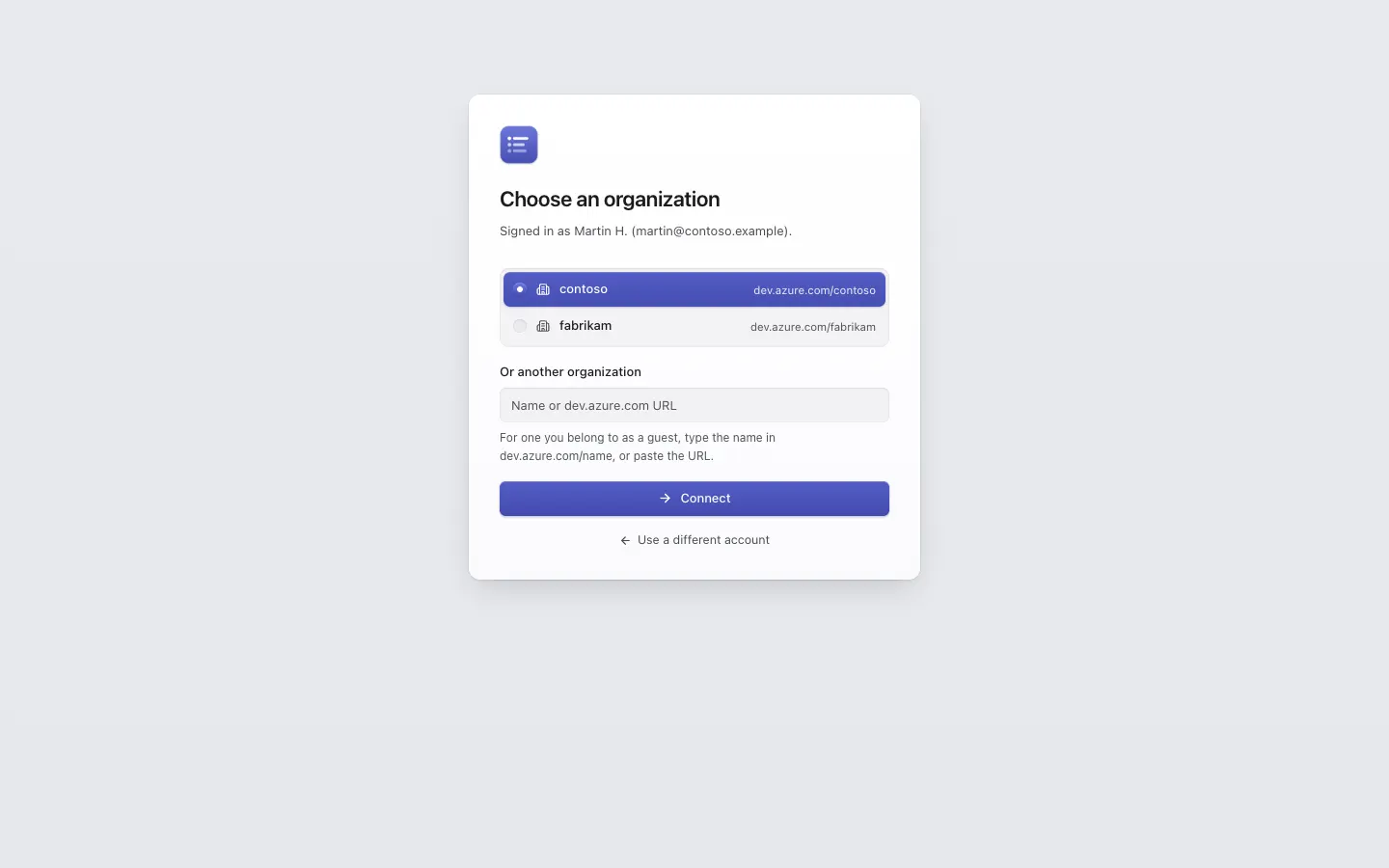
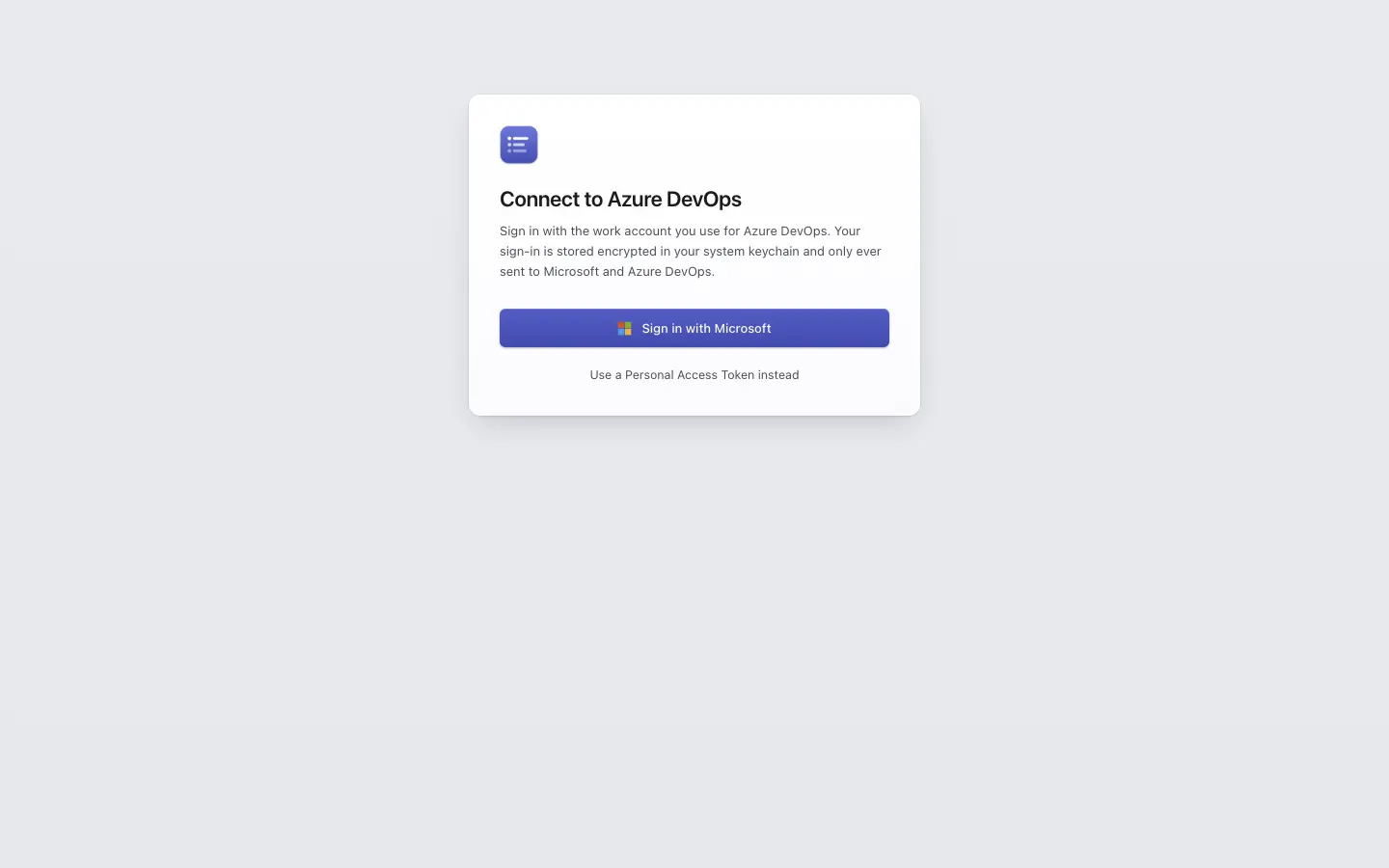
Choose Sign in with Microsoft and sign in with the work account you use for Azure DevOps, in your browser. ADO Local then lists the organizations that account belongs to; pick one. Your sign-in is kept encrypted in the system keychain and is only ever sent to Microsoft and Azure DevOps.
For an organization you belong to as a guest, which isn't listed, type its name (or paste its address) under Or another organization. Use a different account goes back to sign in as someone else.
Sign in with a Personal Access Token
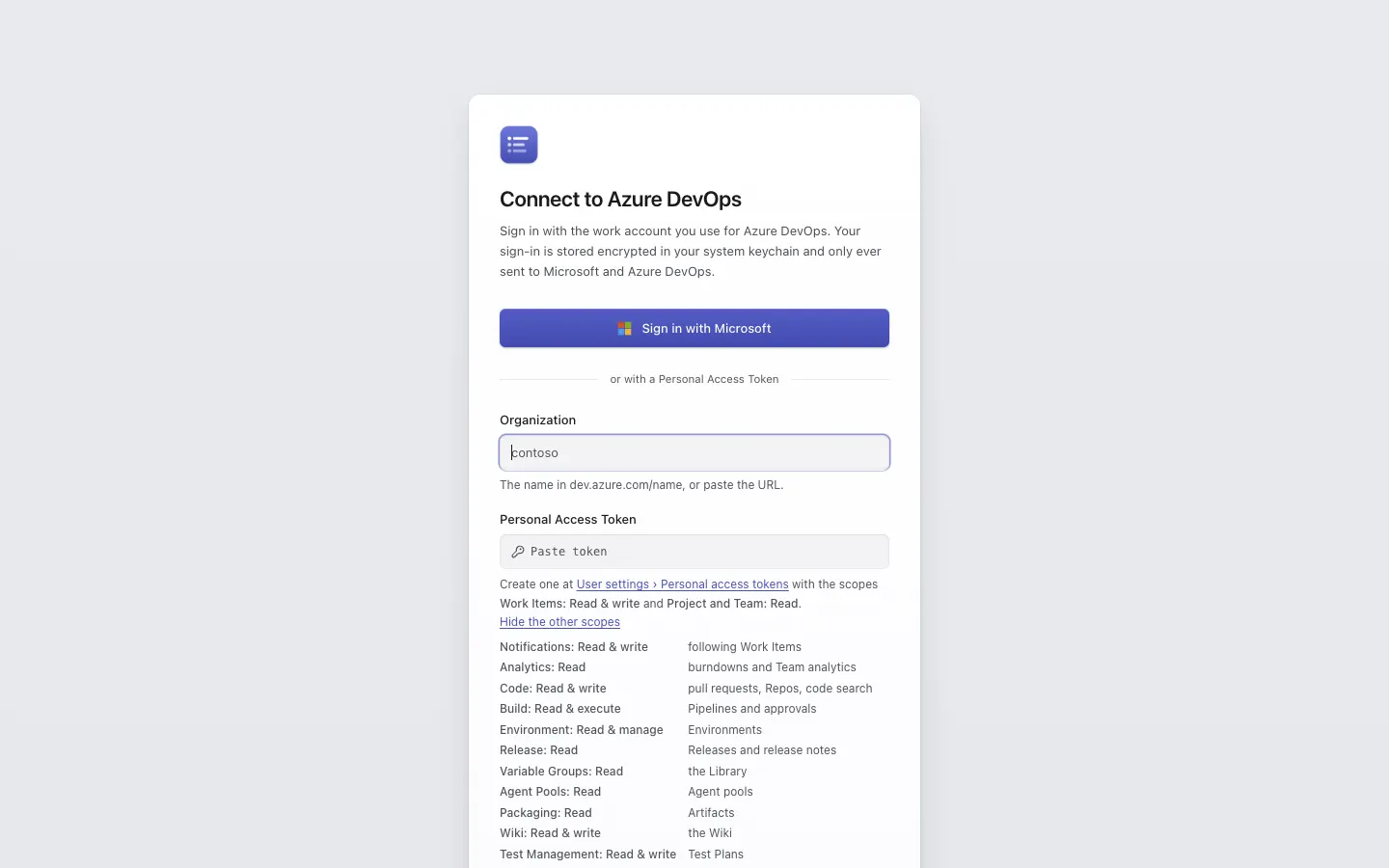
Type the organization's name (the name in dev.azure.com/name, or paste the whole
address), and paste a Personal Access Token. Make the token in Azure DevOps under
User settings › Personal access tokens. It needs at least
Work Items: Read & write and Project and Team: Read; each part of the app
says which other scopes it needs, and Show the other scopes on the sign-in window
lists them all.
| Scope | For |
|---|---|
| Notifications: Read & write | Following Work Items |
| Analytics: Read | Burndowns, Team analytics, Pipeline health and test history |
| Code: Read & write | Pull requests, Repos and code search (Read, write & manage for cherry-pick and revert) |
| Build: Read & execute | Pipelines, their Runs and approvals |
| Environment: Read & manage | Environments |
| Release: Read | Classic releases and release notes (Read, write, execute & manage to act on them) |
| Variable Groups: Read | The Library |
| Agent Pools: Read | Agent pools |
| Packaging: Read | Artifacts |
| Wiki: Read & write | The Wiki |
| Test Management: Read & write | Test Plans |
| Dashboards: Read & manage | Dashboards |
| Extension Data: Read & write, Extensions: Read | The Sprint Goal and retrospectives |
Without a scope, that part of the app says what's missing rather than failing quietly.
Choose the Projects to sync
Next, tick the Projects whose Work Items you work on. ADO Local copies them to this computer: by default, the Work Items changed in the last year plus every one that's yours, which keeps even large Projects fast. That's the Sync Scope. Older Work Items outside it still open from Azure DevOps when you need them.
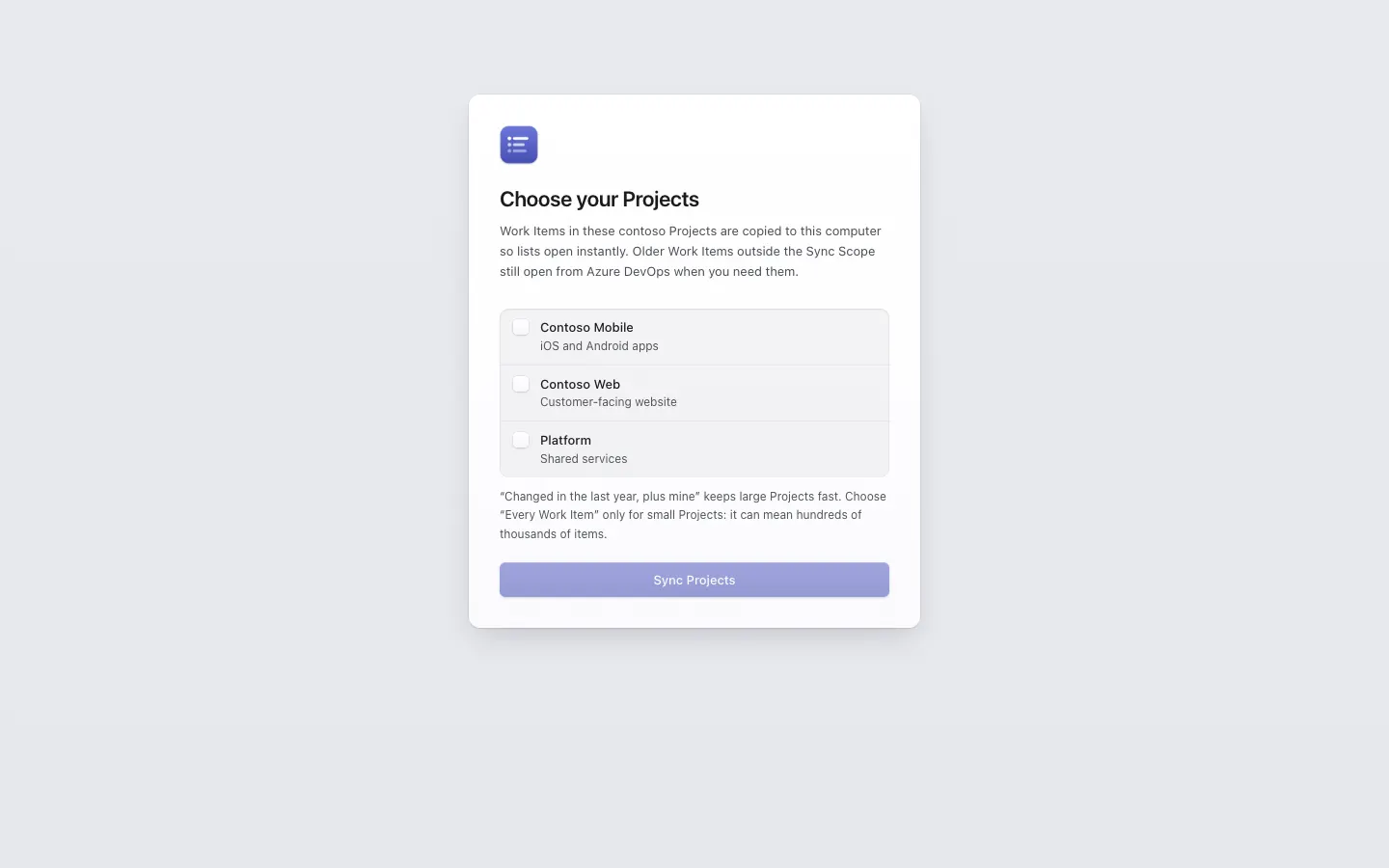
The copy is kept up to date every 60 seconds, and whenever the window comes back into focus. The line at the bottom of the sidebar says when it last synced; click its button to sync now.
Find your way around

The window has two parts: the sidebar, and the screen you've chosen from it.
- The organization menu at the top of the sidebar switches organizations and has Preferences, Synced Projects, Help, Send Feedback, About and Sign out.
- Search or jump to… opens the command palette.
- Home, My Work, Pull Requests, Updates and Search are yours, across every Project.
- Your Team: its Backlog, its Iterations (the current one marked), and its Retrospectives. Click the Team's name to switch Team.
- Plans and Queries: Delivery Plans and the Queries you've pinned.
- Projects: each synced Project, folding away its Pipelines, Releases, Repos, Wiki, Test Plans, Dashboards and Artifacts.
- The sync line at the bottom: when it last synced, whether you're offline, and how many changes wait to be sent.
Drag the sidebar's right edge to make it narrower or wider; a double-click puts it back. Fold it to its icons with the button at its top, View › Show or Hide Sidebar (⌃⌘S) on a Mac, or Ctrl+\ on Windows. Entries you never use can be hidden in Preferences.

Work Items open in panels beside the screen you're on, so a list or a board stays in view while you read or edit one. Work Item panels tells you how to keep several open side by side.
Screens open as you last left them. An Iteration reopens on its Backlog, Taskboard, Capacity or Stand-up, a pull request on the tab you had, and the app reopens on the screen it closed on.
The command palette
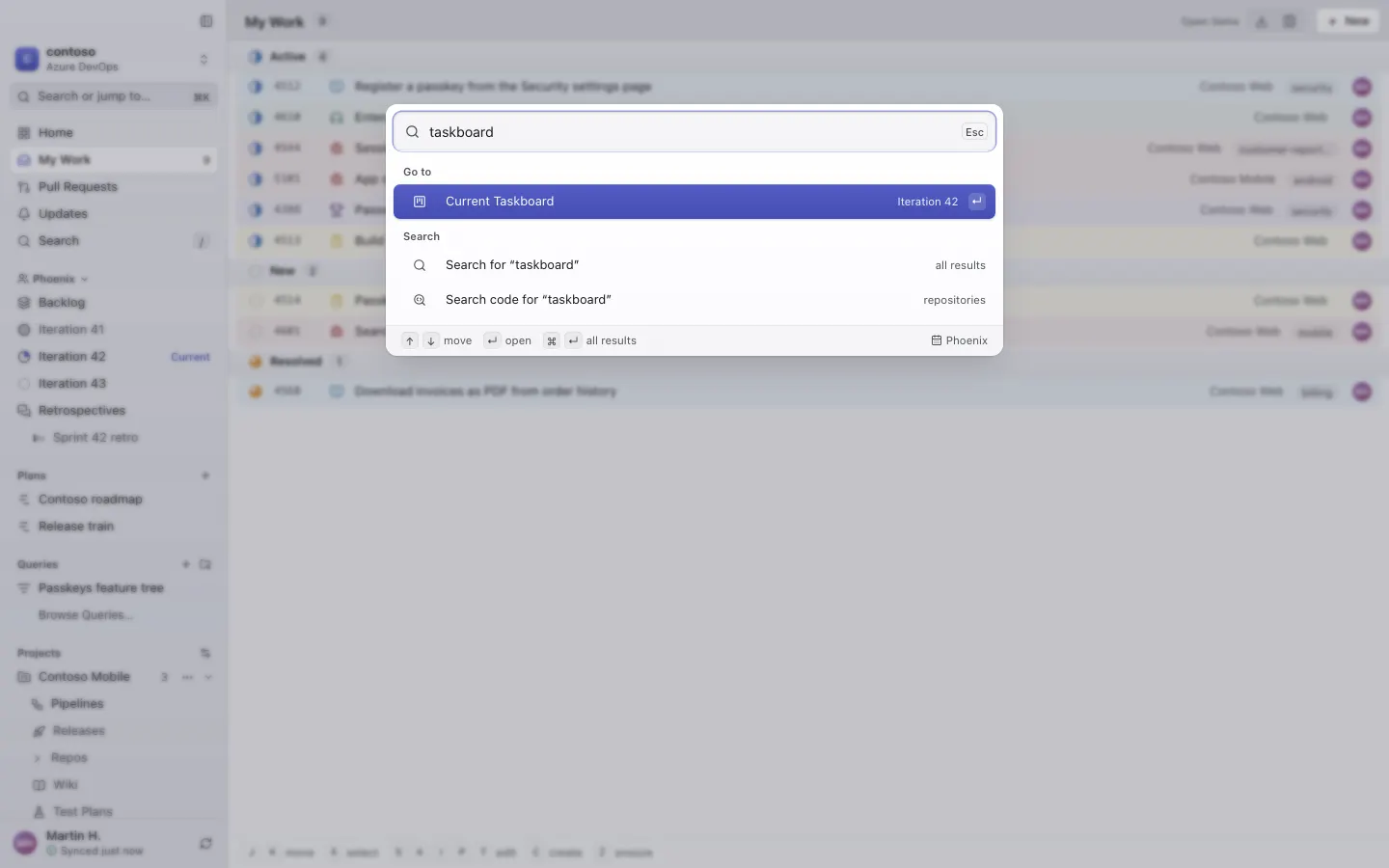
Press ⌘K (Ctrl+K on Windows), or click Search or jump to…, to open the command palette. Type a few letters and press Enter. It finds:
- Work Items, by ID or by words in their title. With nothing typed, the ones you opened recently and the panels you have open.
- Screens to go to: My Work, the current Iteration's Backlog or Taskboard, a Pipeline, a repository, a Wiki, a dashboard.
- Queries, plans and Teams.
- Commands: New Work Item, Sync now, Copy link, Export, Preferences, Help, Send Feedback and many more. A command that can't be used here says why.
- An Azure DevOps address pasted in, which opens in ADO Local.
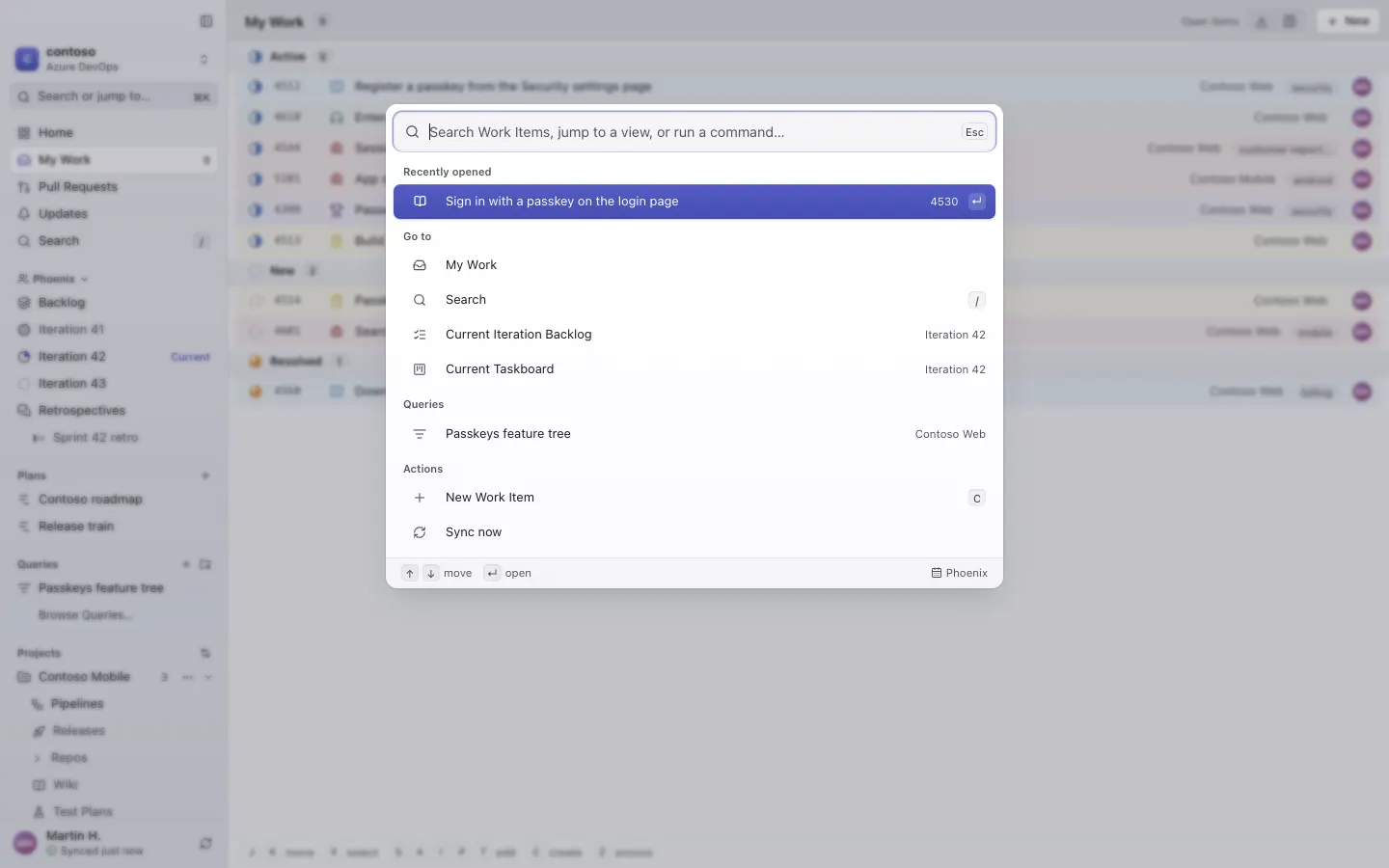
↑ and ↓ move through it, Enter opens the one chosen and Esc closes it. ⌘Enter searches for what you've typed and shows every result. If you only remember one shortcut, make it this one.
Keyboard first
Nearly everything can be done from the keyboard. In a list, J and K move, X selects, S, A, I, P and T change the State, Assigned To, Iteration, Priority and Tags of what's selected, and C creates a Work Item. / goes to Search from anywhere. The keys that work on a screen show along its bottom edge.
This manual writes shortcuts as they are on a Mac. On Windows, use Ctrl for ⌘ and Alt for ⌥. Keyboard shortcuts lists them all.
Getting help
This manual opens from the app, at the page for the screen you're on:
- On a Mac, Help › ADO Local Help in the menu bar.
- On Windows, press F1.
- Anywhere, Help in the organization menu, or type help in the command palette.
- The About box links to the manual's contents.
Found a problem, or have an idea? Choose Send Feedback… in the same places. It goes to the makers of ADO Local, never to Azure DevOps; Send feedback says what's sent with it.