 ADO Local
Organizations, offline and Preferences
How ADO Local works with your organizations and the copy it keeps of them, what happens when you lose your connection, and the choices in Preferences that make the app yours.
The organization menu
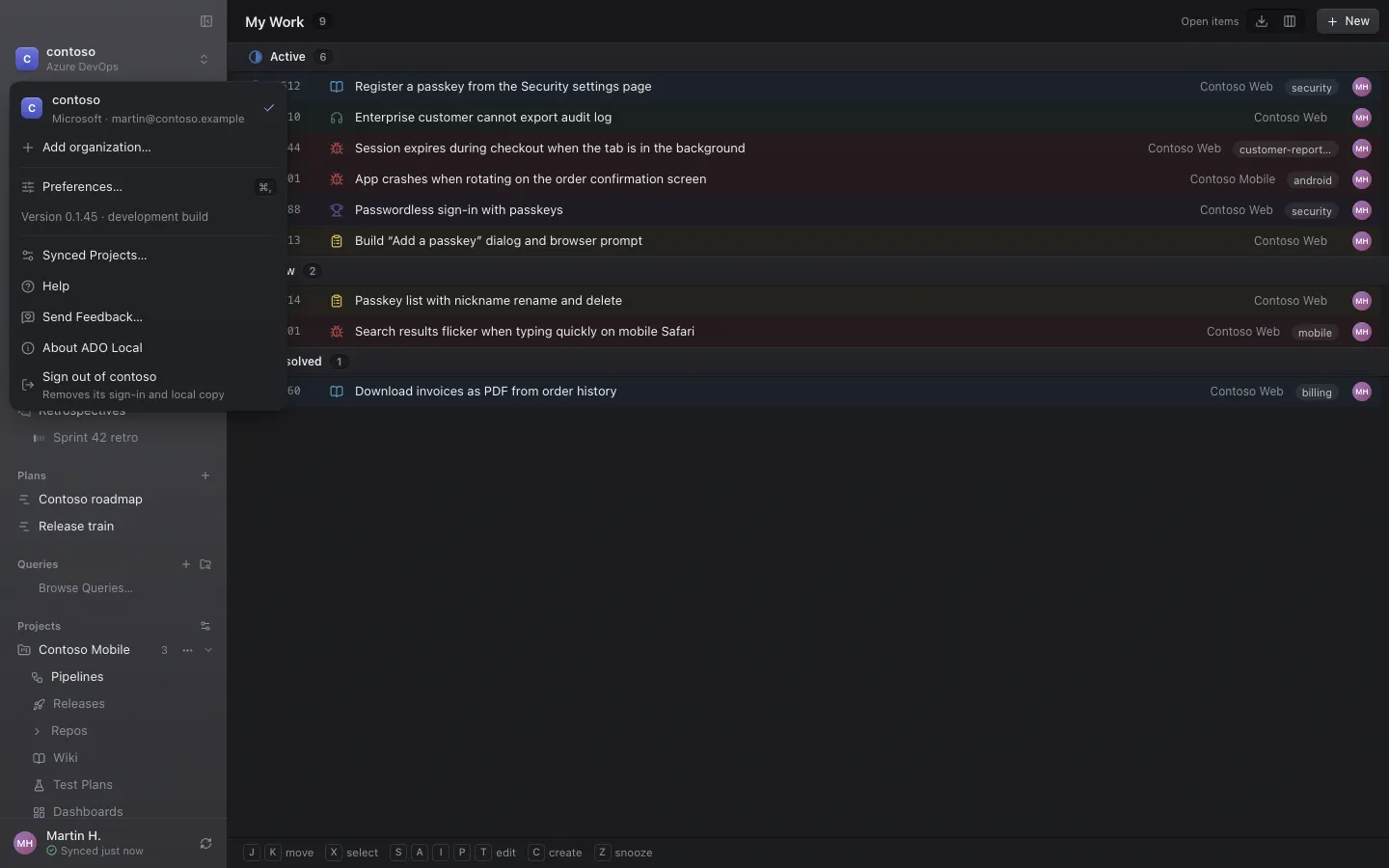
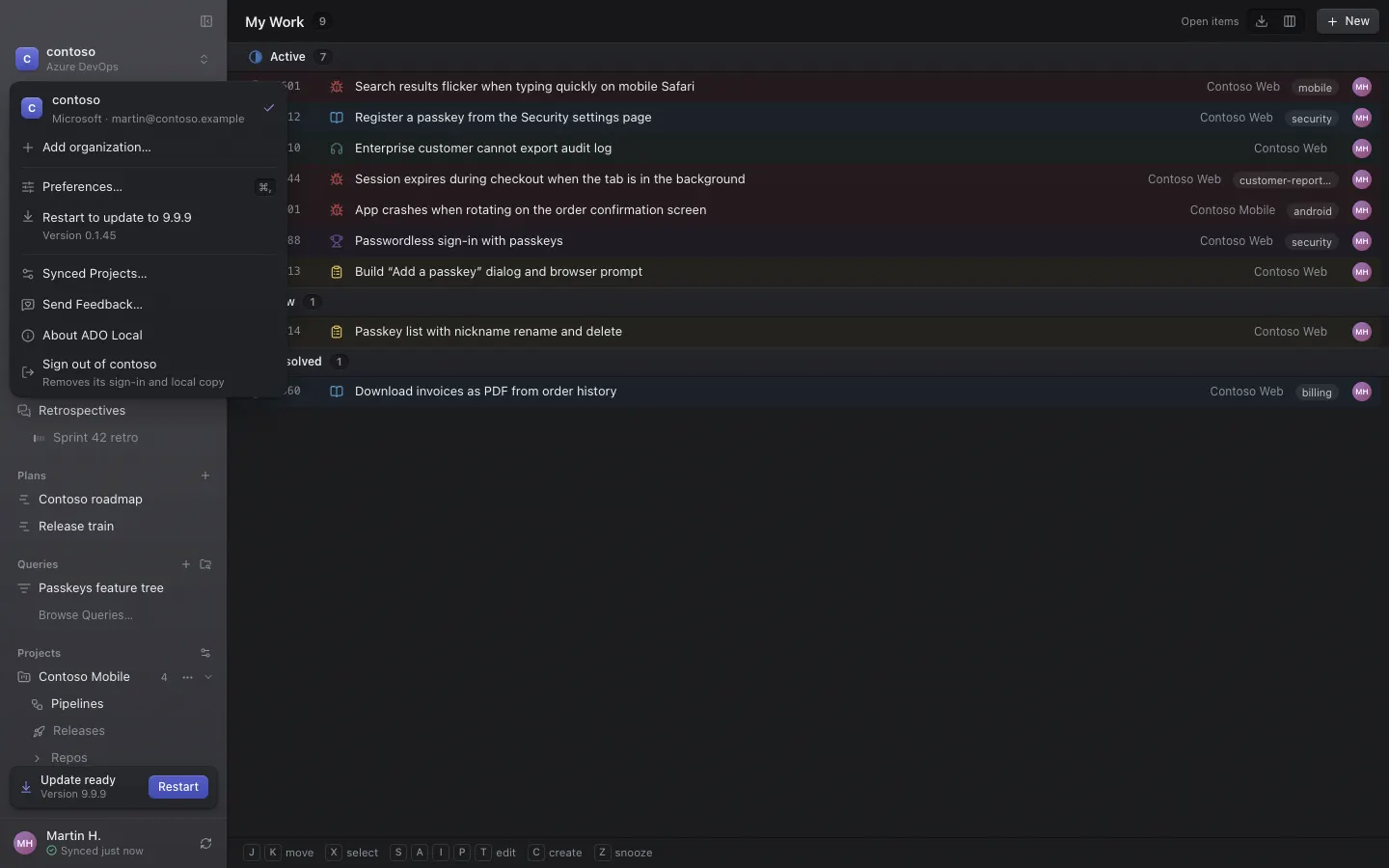
Click the organization's name at the top of the sidebar. The menu that opens has the organizations you're signed in to and everything about the app itself:
- each organization you're signed in to, to switch to it, and Add organization…;
- Preferences… (⌘,), and the version you're running, with Restart to update when a newer one is ready;
- Synced Projects…, to choose the Projects kept on this computer;
- Help, which opens this manual, and Send Feedback…;
- About ADO Local;
- Sign out of the organization you're in, which removes its sign-in and local copy.
Several organizations
You can stay signed in to more than one organization, each with its own local copy. The one you're in is the one the window shows; the others keep syncing in the background every 15 minutes, so the organization menu shows how many unread Updates each has, and their desktop notifications still arrive.
Add an organization
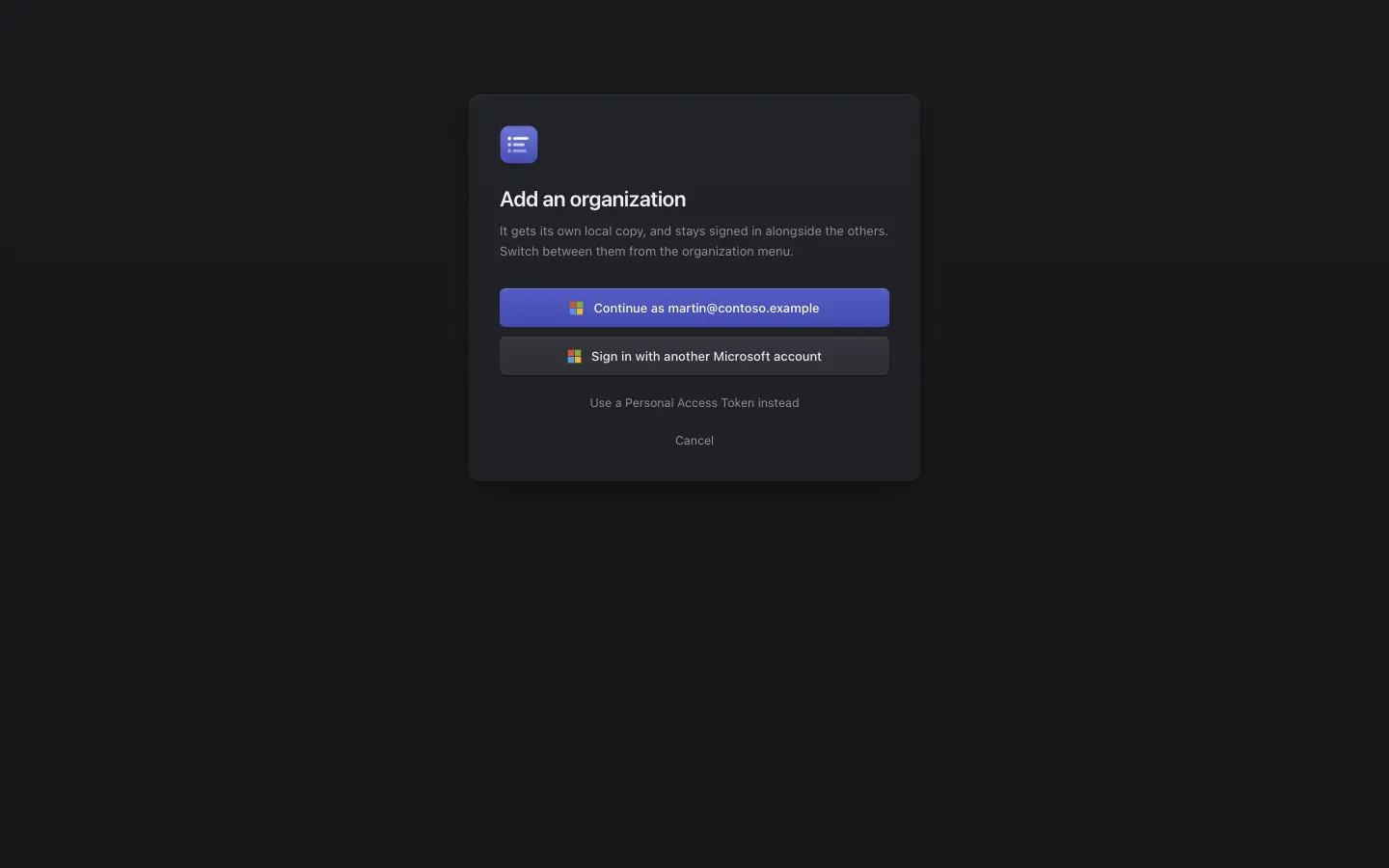
- Open the organization menu and choose Add organization….
- Use the Microsoft account you're already signed in with, sign in with another account, or use a Personal Access Token.
- Pick the organization, then choose its Projects to sync.
Switch organization
Choose another organization in the organization menu, or type its name in the command palette (Switch to …). Work Item panels belong to their organization, and each organization keeps its own sidebar layout. A link to something in another organization you're signed in to switches to it first.
Sign out
Sign out of … in the organization menu signs out of the organization you're in. It removes only that organization's sign-in and its local copy; the others stay as they are.
The local copy and syncing
ADO Local keeps a copy of the Work Items in the Projects you choose, on this computer. That's what makes lists, search and boards open at once, and what keeps them there offline. Everything else (pull requests, Pipelines, the Wiki) is read from Azure DevOps when you open it, and some of it is kept for when you're offline.
Choose the Projects
Synced Projects… in the organization menu (or Choose synced Projects in the command palette) lists the organization's Projects. Tick the ones you work in. For each, the Sync Scope is either Changed in the last year, plus mine, which keeps even large Projects fast, or Every Work Item, for small Projects only: it can mean hundreds of thousands of items. A Work Item outside the Sync Scope still opens: it's read from Azure DevOps when you ask for it.
When it syncs
The organization you're in syncs every 60 seconds and whenever the window comes back to the front; the others every 15 minutes. The line at the bottom of the sidebar says when it last synced. Click the sync button beside it, or choose Sync now in the command palette, to sync at once.
If a sign-in expires or a Personal Access Token is revoked, the sync line says so, and signing in again carries on where it left off: nothing waiting to be sent is lost.
Working offline
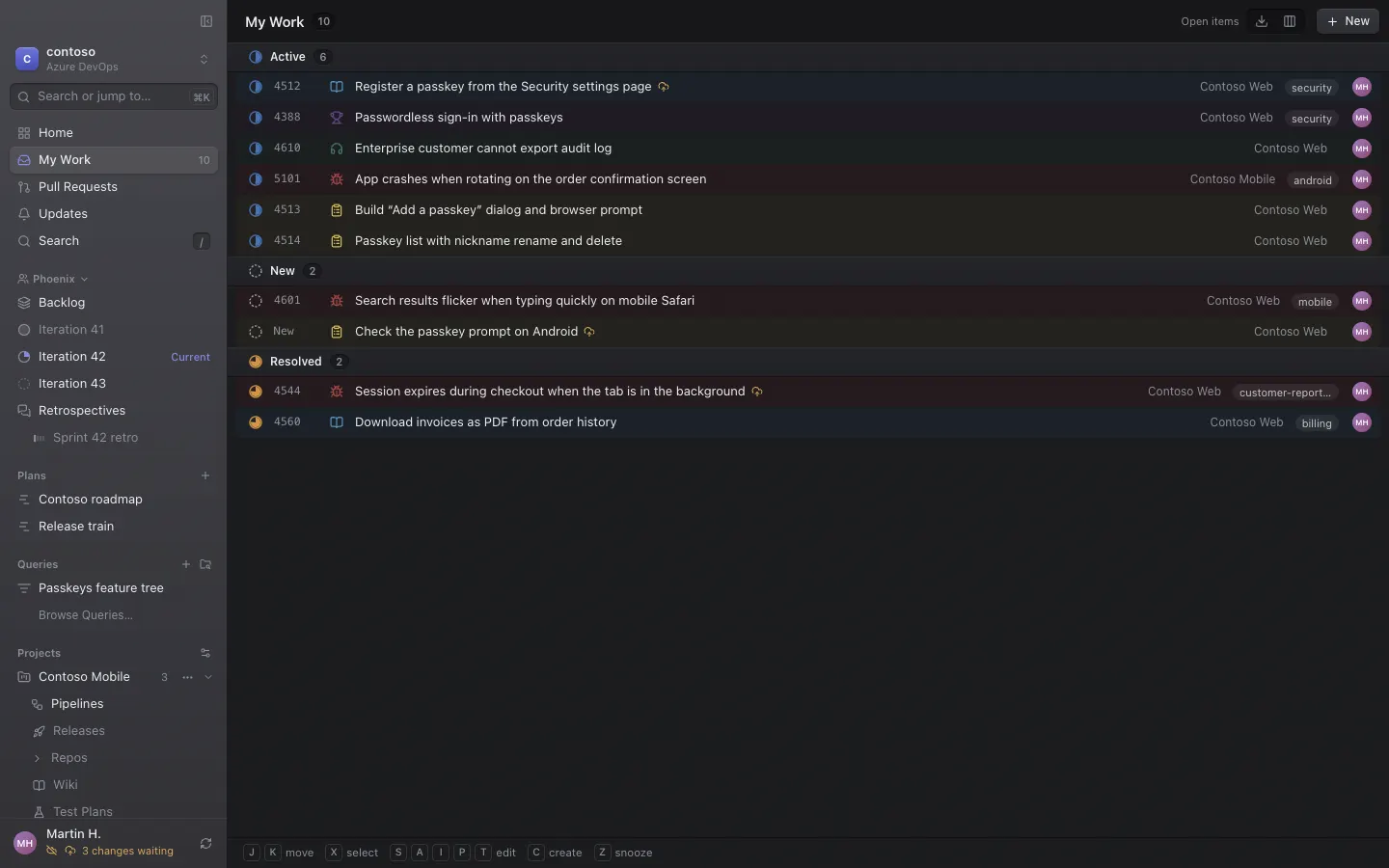
Without a connection, ADO Local keeps working from its copy. The sync line says you're offline, and what you change is kept on this computer and sent when you're back online, oldest first. It's kept even if you quit the app.
What you can do offline
- Edit Fields, one Work Item at a time or in bulk, and drag cards on the Taskboard and the Kanban Board.
- Move Work Items to an Iteration, and change their Backlog Order.
- Comment, create Work Items and tasks, change parents and links, follow and unfollow.
- Add attachments (up to 130 MB, as online): the file is kept here until it's uploaded.
- Delete a Work Item, or copy one.
- Change Capacity, save Queries, apply templates, import from CSV and move cards on a Delivery Plan.
A new Work Item shows as New · not sent until it's created. A deleted one disappears at once, as Deleted · not sent, and Undo brings it back until it's sent. Change type and Move to Project still need a connection, as do the parts of the app that read Azure DevOps each time they're shown.
What's waiting, and what went wrong
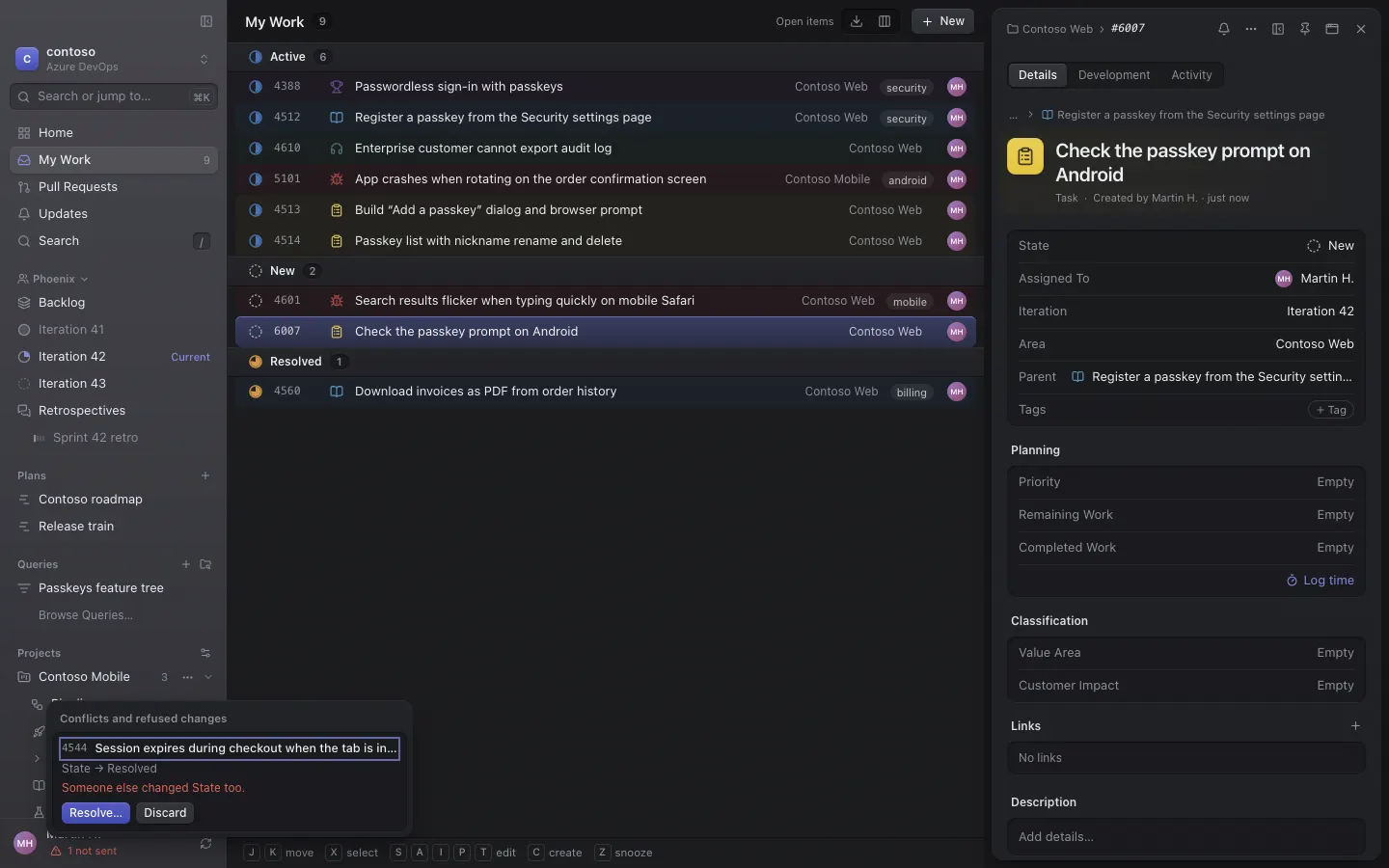
The sync line counts the changes not yet sent; click it to see them. The list has three parts:
- Waiting to send: each change, with Discard to throw it away before it goes.
- Conflicts and refused changes: a change to a Field someone else changed too, to resolve with the usual Edit Conflict choice; one Azure DevOps refused, with Try again or Discard; and a Query someone else saved first, with Keep mine, Keep theirs or Save mine as a new Query.
- Sent, with a note: changes that went, but not quite as they were made. A move in Backlog Order whose neighbour had gone says where it went instead, and Capacity that replaced someone else's says so. Dismiss clears a note.

Edit Conflicts
Online or offline, a change made to an older version of a Work Item is merged for you when someone else changed other Fields. When they changed the same Field, ADO Local shows both values and asks which to keep.
Desktop notifications
ADO Local tells you when something needs you, with a desktop notification from every organization you're signed in to. Click one to open what it's about. The count on the Dock (Mac) or the tray icon (Windows) adds up your unread Updates, the approvals waiting for you and the pull requests waiting for your review.
Choose which kinds pop up in Preferences › Notifications, or turn notifications off altogether:
| Work Items | Pipelines and releases |
|---|---|
| Someone mentions me | A run failed |
| A Work Item is assigned to me | A pipeline recovered (off until you turn it on) |
| The State changes on a Work Item I follow | A run I started finished |
| A release I created finished deploying | |
| An approval is waiting for me |
And for pull requests:
- I'm asked to review a pull request
- A new comment on my pull request, or in a thread I'm in
- Someone approves, rejects or waits for me on my pull request
- My pull request is completed
- A required check fails on my pull request
- A pull request opens with no one named to review (off until you turn it on)

Quiet time
Quiet hours, every day keeps notifications quiet between two times you choose. Pause notifications stops them For 1 hour or Until tomorrow. Nothing is lost while they're quiet: Updates and the counts still change.
Preferences
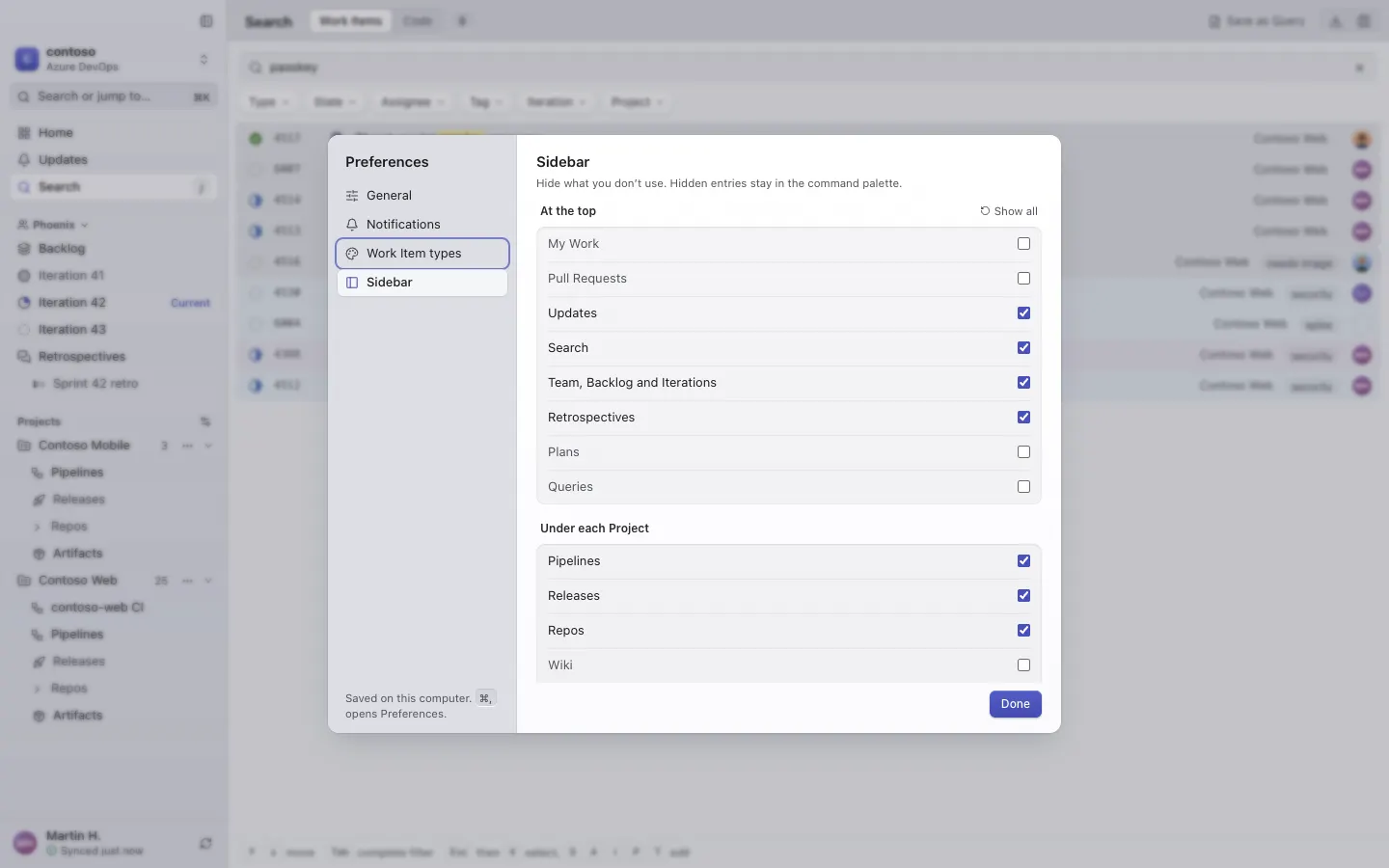
Open Preferences with ADO Local › Preferences… or ⌘, on a Mac, Ctrl+, on Windows, Preferences… in the organization menu, or the command palette. Everything in Preferences is kept on this computer, the same in every organization, and nothing is sent to Azure DevOps. It has four sections.
General
- Appearance: System, Light or Dark. System follows your computer. It's applied before the window opens, and kept when you sign out. The command palette can switch it too.
- Quick capture shortcut: the system-wide shortcut that opens quick capture from any app, ⌥⇧Space on a Mac and Ctrl+Alt+Space on Windows until you change it. Click it and press the keys you want, or turn it off.
- Open at login: starts ADO Local when you sign in to your computer.

Notifications
The kinds of desktop notification, quiet hours and a pause, as above.
Work Item types
Give each Work Item type (Product Backlog Item, Bug, Task, Feature, Epic, User Story and whatever else your Processes have) a colour of your own, from the swatches or as a hex value. It's used wherever the type's icon shows. Reset goes back to the Process's colour. A colour that would be hard to see on light or on dark is drawn a shade darker or lighter there, and the preview shows both.
- Shade rows and cards: a faint wash of each Work Item's type colour behind its row or card, in lists, search results, backlogs, boards, Delivery Plans and Dependencies, and in the detail panel's title. It's light enough that every line of text stays readable. Turn it off for plain rows.
- Work Item form: Compact, or As in Azure DevOps, laid out as the Process's form is on the website, with its tabs, and its sections side by side when there's room.
- Work Item links in text: where a Work Item linked in a Comment or a Field opens: Beside (in a panel), In a window, or In the browser. ⌘-click one to open it on the website instead.

Sidebar
Hide the entries you don't use: My Work, Pull Requests, Updates, Search, the Team's Backlog and Iterations, Retrospectives, Plans, Queries, and each Project's Pipelines, Releases, Repos, Wiki, Test Plans, Dashboards and Artifacts. Home and the Projects always show. A hidden entry shows again while you're on its screen, and the command palette still goes everywhere.
On your desktop
ADO Local behaves like the other apps on your computer.
- The menu bar or tray icon (the menu bar on a Mac, the tray on Windows) offers New Work Item…, Find…, your five most recently opened Work Items, and the count of unread Updates.
- On Windows, closing the window keeps ADO Local running in the tray, so notifications still arrive. Quit ADO Local is in the tray icon's menu.
- Links:
ado-local://links open straight in the app, and Azure DevOps addresses pasted into the command palette open here. See Links. - Quick capture works from any app, with its system-wide shortcut. See Quick capture.
Updates and the pre-release
ADO Local checks for new releases and downloads them in the background. When one is ready, the organization menu shows Restart to update, and the command palette has it too; until then, Check for updates in the command palette looks straight away. The update installs as the app restarts.
While ADO Local is in pre-release, each version works for 90 days after it was released, and the About box says until when. As the end nears, the app says so; updating carries on. A version past its 90 days only offers the way to a newer one.
Send feedback
Ideas and problems go straight to the makers of ADO Local, never to Azure DevOps. Choose Send Feedback… in the Help menu (Mac), the organization menu, the command palette or the About box.
- Choose whether it's an Idea, a Problem or something else, and write it.
- Add an email address if you'd like a reply, and tick the box to include a screenshot of the window if it helps. The screenshot shows whatever is on screen, so leave it out if that isn't to be shared.
- Send it. Without a connection, it's kept on your computer and sent when you're back online.

Nothing about your organization, Work Items or sign-in goes with it. The tour's Feedback and privacy section says where it's kept, and how to have it deleted.
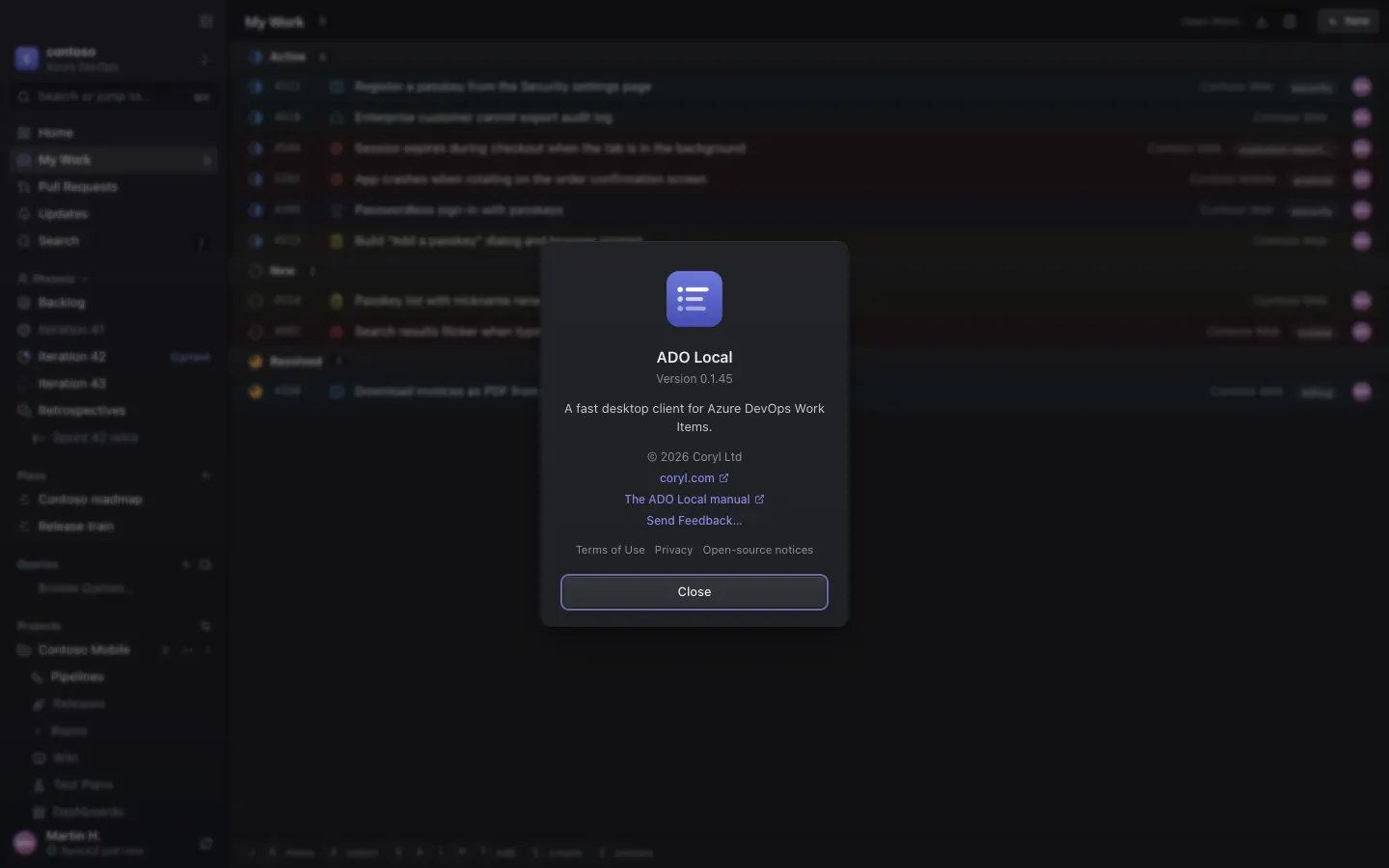
About ADO Local
About ADO Local (in the ADO Local menu on a Mac, the organization menu or the command palette) shows the version you're running and, in pre-release, until when it works. It links to this manual, Send Feedback, the Terms of Use, the Privacy notice and the open-source notices.