 ADO Local
Boards and planning
How a Team plans and runs its work in ADO Local: the Team Backlog and its Kanban Board, an Iteration's Backlog, Taskboard and Capacity, the stand-up and the end of a sprint, Delivery Plans across Teams, retrospectives, and the Areas and Iterations they all depend on.
Teams
Planning in Azure DevOps belongs to a Team, and so it does here. The sidebar shows one Team at a time, the active Team: its name, then its Backlog, its Iterations (the current one marked Current, with the one before it and the next two) and its Retrospectives.
Switch Team
- Click the Team's name in the sidebar to open the Team menu.
- Choose another Team. Your own Teams are listed first.
The command palette has Switch Team: … for each Team too. Opening a link to another Team's Iteration or backlog makes that Team the active one. All Iterations…, under the Team's Iterations in the sidebar, lists every Iteration the Team has, beyond the few shown there.
The Team menu also has the Team's Work Item templates, Import from CSV… and Team settings… (see Team settings).
The Team Backlog
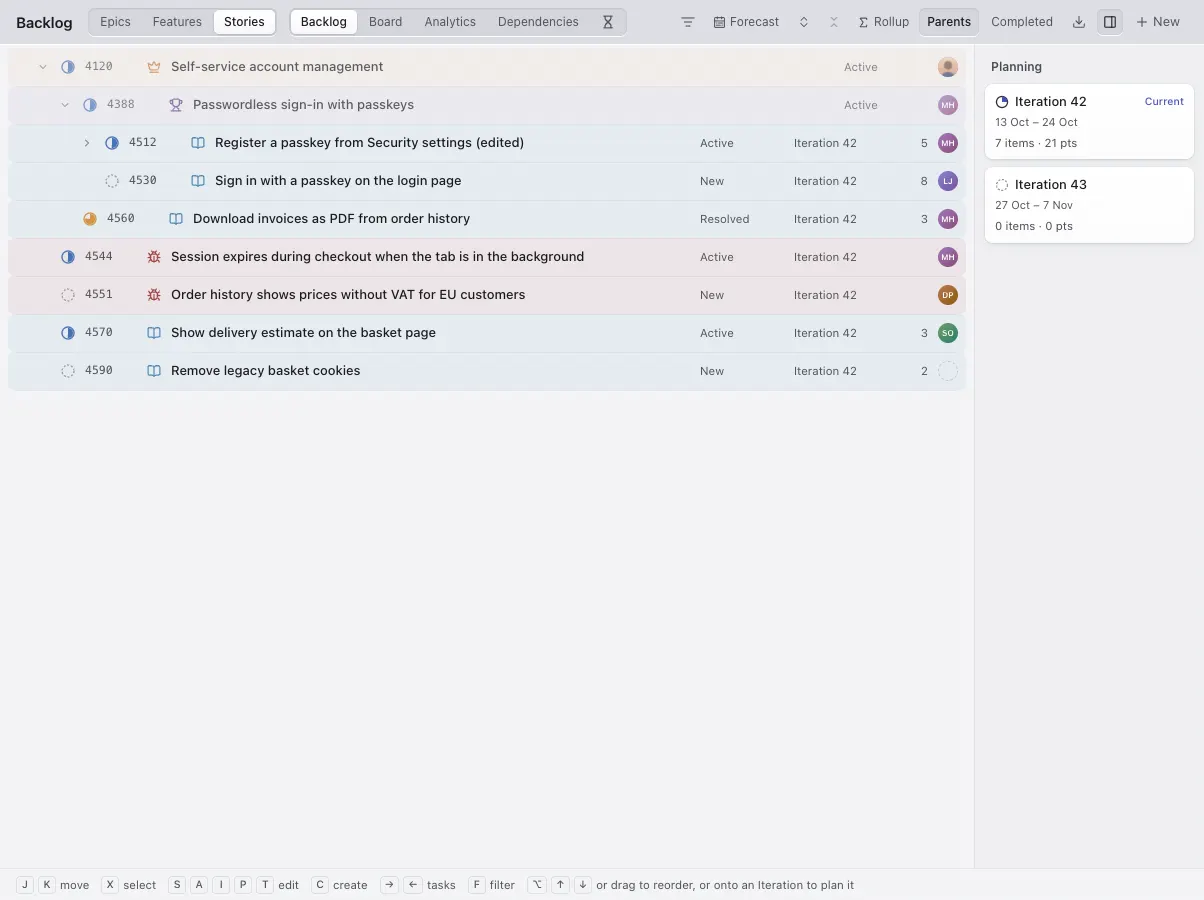
Backlog in the sidebar opens the Team's backlog: one backlog level at a time, across every Iteration, in Backlog Order. Choose the level along the top (Epics, Features, Stories or Backlog items, as the Process names them). Beside the levels, the backlog has five views: Backlog, Board, Analytics, Dependencies and, under the hourglass, Needs attention. The one you used last opens next time.
What the toolbar does
- Parents shows the Work Items from the levels above, so each row sits under its Feature and Epic. Parents from above are drawn quieter; click the arrow beside one to fold what's under it.
- Completed shows the Work Items that are done, which are left out otherwise.
- Forecast and Rollup are described below.
- The filter button (or F) filters the rows (see Filtering).
- The download button exports the rows showing to CSV or Excel.
- The panel button shows or hides the Planning panel: the Team's current and future Iterations, each with its dates, how many Work Items it has and how many points.
- New (or C) creates a Work Item at this level.
When the window is narrow, the toggles move into View options and the levels become a menu, so nothing is cut off.
Order the backlog
Drag a row up or down to change its Backlog Order. From the keyboard, select a row with J and K, then press ⌥↑ or ⌥↓ to move it. The new order is saved to Azure DevOps, so the website shows it too.
Plan a Work Item into an Iteration
- Drag a row onto an Iteration in the Planning panel, or onto an Iteration in the sidebar.
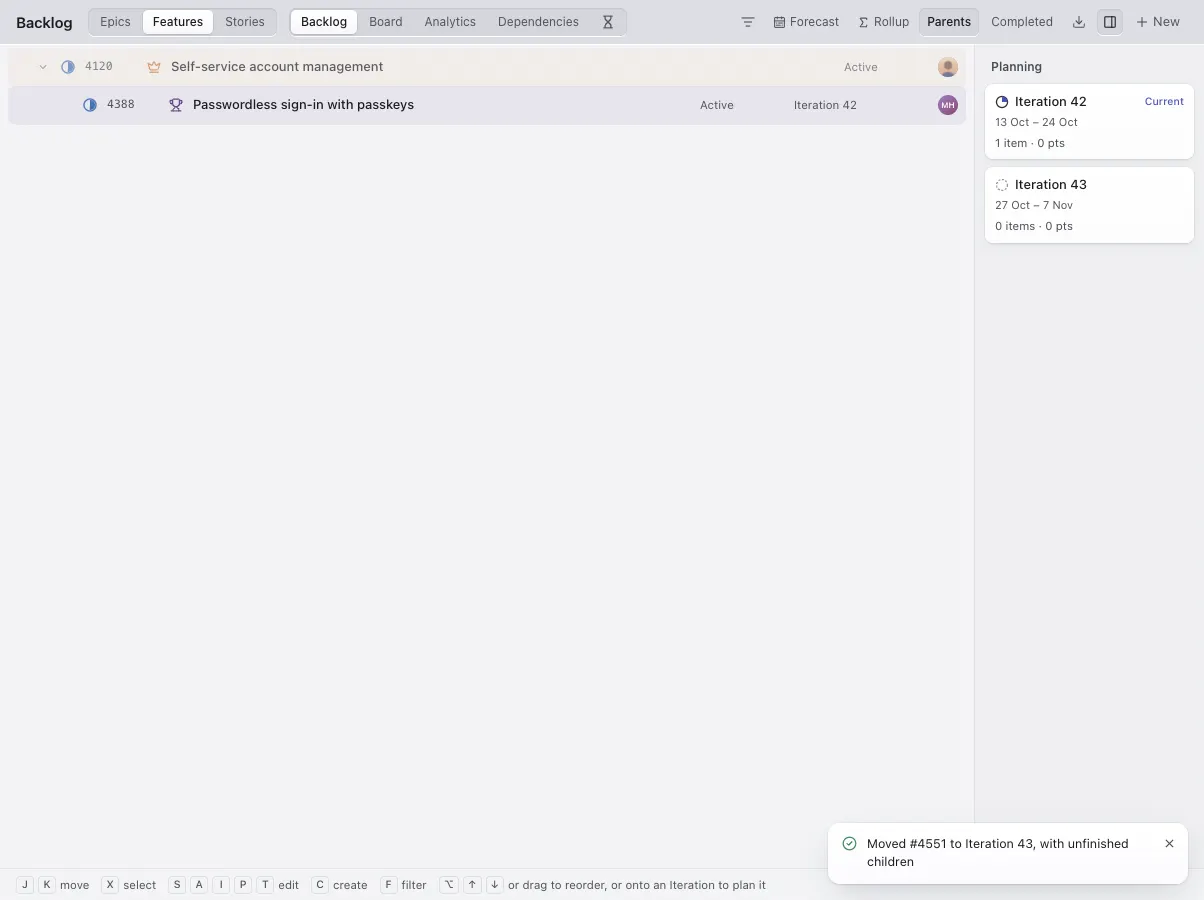
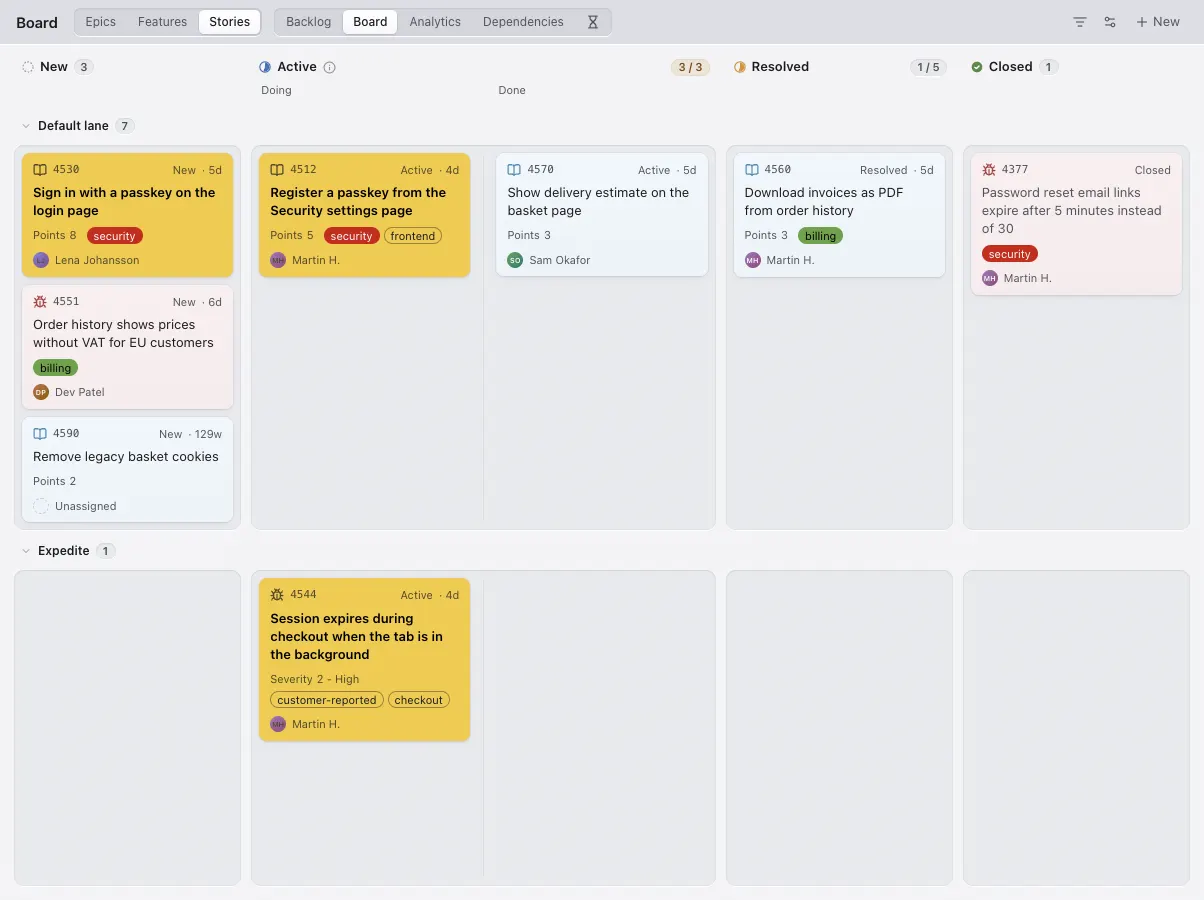
- Let go. The Work Item moves to that Iteration, and its unfinished child tasks go with it; a message says so.
The same works from other lists: drag a Work Item from Search or a Query onto an Iteration in the sidebar. A Work Item's open panel follows the move. Offline, the move waits to be sent.
Tasks on the backlog
At the backlog items' level, → shows a selected row's tasks under it and ← hides them again. The buttons in the toolbar's header show or hide every backlog item's tasks at once. A task's Remaining Work shows beside it.
Forecast and Rollup
Forecast
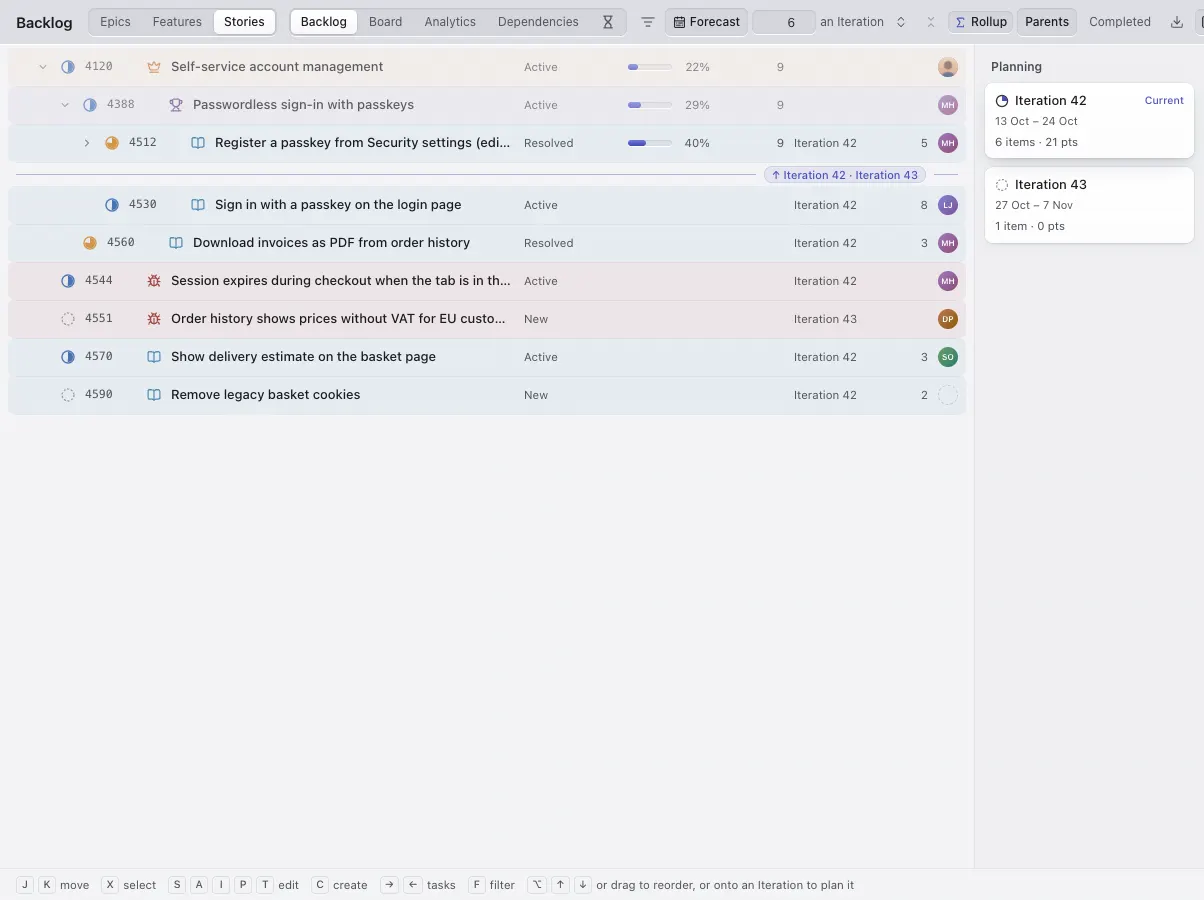
Forecast draws a line across the backlog where each coming Iteration would end, from a velocity you set: how much effort the Team gets done in an Iteration. It starts at Analytics' average over the last six Iterations; type another number in the box beside Forecast to see what a faster or slower Team would reach. Each line is labelled with the Iterations it divides.
Rollup
Rollup adds columns worked out from each Work Item's descendants: progress by count of Work Items or by effort (as a bar and a percentage), the total effort, and the total Remaining Work. It's most useful on the Features and Epics levels, to see how far along each one is. Tree Queries offer the same rollup columns.
Filtering backlogs and boards
The Team Backlog's list and its Kanban Board, and an Iteration's Backlog and its Taskboard, can be filtered by words. Press F or click the filter button, and type.
- Only the Work Items that have every word you type stay, in any order and any case. The count beside the field says how many were found.
- Words are looked for in each Work Item's title, ID, tags, the person it's assigned to and, on the Team Backlog, its Iteration's name. Its type and State aren't searched: their words are in too many rows to narrow anything.
- On the Team Backlog with Parents on, the parents over what's found stay, to show where it is, and their words count: a Feature's name finds everything under it.
- A task's title finds its backlog item, opened on just that task.
- Esc clears what's typed, then puts the field away.

On the boards:
- Only the cards that have the words stay. On the Taskboard, a task also has its backlog item's words, so a backlog item's name finds all its tasks, and Swimlanes with nothing found are hidden. The words work together with the person chips.
- Column counts, WIP limits and hours still count everything that's there, so a filter can't make a WIP limit look met.
- Swimlanes that were folded open while the filter is on, so nothing found is out of sight.
While a filter is on:
- Rows and cards can't be moved in Backlog Order, because there may be hidden ones between them; ⌥↑ and ⌥↓ move nothing. A card still drags to another column, Swimlane or person, and a row still drags onto an Iteration.
- The Forecast's lines are put away.
- Export gives only the rows showing.
What you type goes with you from the Team Backlog to its Kanban Board, and from an Iteration's Backlog to its Taskboard. It's cleared when you open another Team's backlog or another Iteration. Nothing is saved.
The Kanban Board
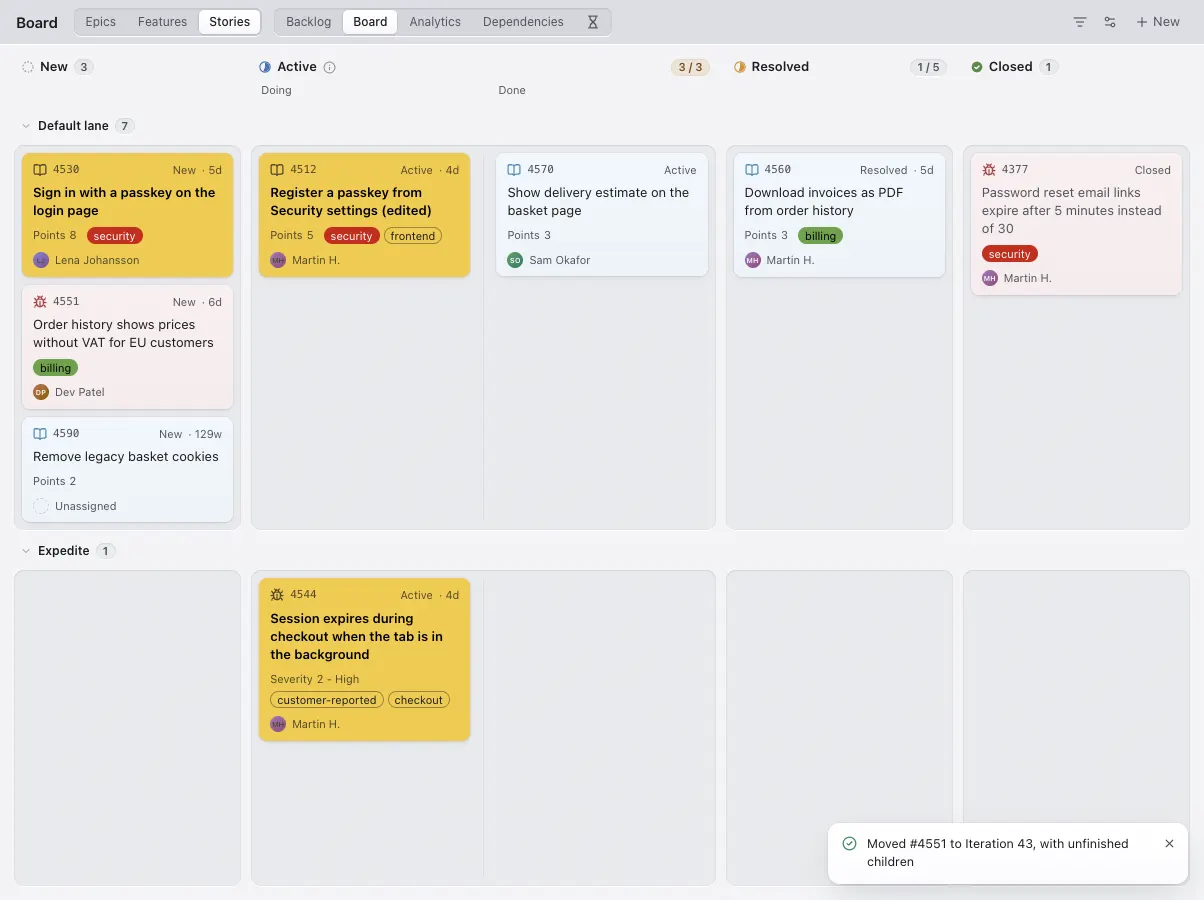
Board shows the backlog level as the Team's Kanban Board: its columns, with WIP limits and Doing and Done splits, its Swimlanes, and a card for each Work Item showing the Fields the Team chose. Cards are coloured by the board's Styles and tags by its tag colours, as on the website.
Move cards
- Drag a card to another column to change its State, or to another Swimlane. Only moves the Process allows are accepted.
- Drag a card above or below another to change its Backlog Order.
- From the keyboard, with a card focused: ⌥← and ⌥→ move it a column; ⌥↑ and ⌥↓ move it within its column, or into the Swimlane above or below.
- Fold a Swimlane with the arrow beside its name.
Offline, moves show straight away and wait to be sent.
Card age
Each card says how long it has been in its State, after the State: "Active · 5d", in weeks from a fortnight on. It counts from the date the State last changed, so where each column has a State of its own it's the card's time in that column; a split column's Doing and Done share one count, because Azure DevOps keeps no date for a column. A fortnight or more in a column where work is under way is drawn in amber. The last column's cards don't show an age.
Board settings
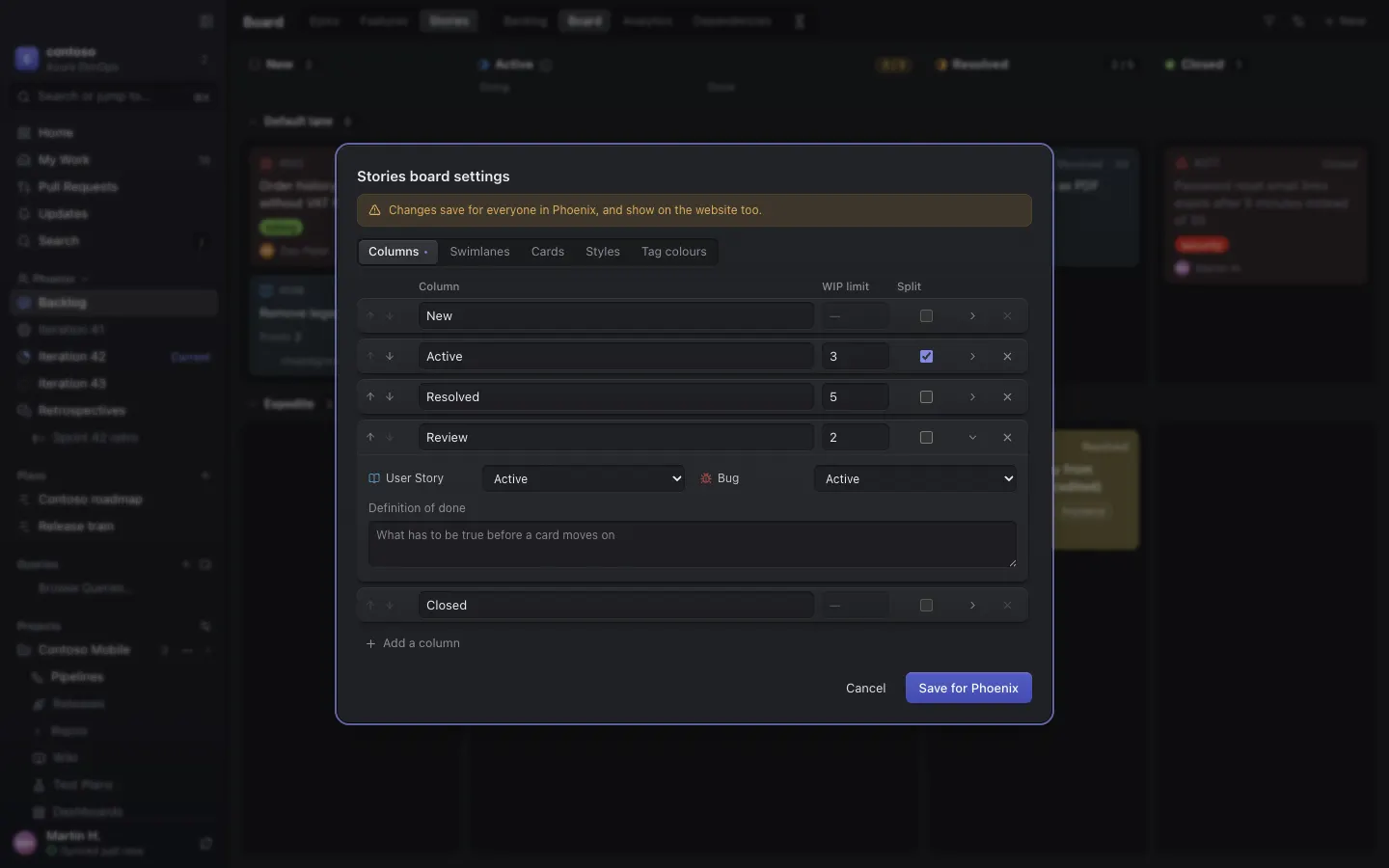
The gear on a Kanban Board opens its settings, for the Team. Changes save for everyone in the Team and show on the website too, so the dialog says so at its top. Save for the Team saves them; Cancel leaves everything as it was.
Columns
- Add a column, rename one in place, reorder with the arrows, and remove one with ×. The first and last columns stay.
- Set a WIP limit: the most cards the column should hold. The board shows the count against it, and marks it when it's reached.
- Tick Split to divide the column into Doing and Done.
- Open a column with its arrow to choose which State each Work Item type takes there, and to write its Definition of done: what has to be true before a card moves on.
Swimlanes and cards
- Swimlanes: add, rename, reorder and remove the board's Swimlanes.
- Cards: which Fields each type's cards show.
Styles
Styles are rules that colour cards. Each has a name, can be turned on or off, and sets a
card colour, the title's colour, and bold, italic or underline. Its criteria are a Field, an operator and a
value, joined by And, and can use @Me, @Today and
@CurrentIteration. Rules are tried in order: a card takes the first Style it meets, so drag the
most important to the top.

Tag colours
Tag colours gives a tag a colour, and a colour for its text. The board draws both in light and dark, keeping the text readable on any colour.

Team administrators and Project administrators can change board settings. For anyone else they show greyed out, with the reason. They need a connection. The Taskboard's own styles can't be read from Azure DevOps, so they stay on the website.
Needs attention
Needs attention, the hourglass beside Dependencies, lists the Team's Work Items at the backlog level that want looking at:
- Unchanged: under way, or resolved and waiting, with nothing changed on them for 7, 14 or 30 days. A Field, a Comment, a link or a move in Backlog Order counts as a change. These are listed the longest-unchanged first.
- Left behind: unfinished, started or not, in one of the Team's Iterations that's over. These are listed by the Iteration that ended longest ago.
At the backlog items' level, their tasks are among them. Each row says its State and how long it has been in it, who has it, and how long it has been unchanged or which Iteration it was left in. One with both reasons is listed under both. Click a row to open the Work Item. Choose 7, 14 or 30 days at the top; the choice is remembered.

An Iteration is over once its last day has passed; one that runs alongside the current one, such as a release's, isn't. Needs attention reads this computer's copy, so it works offline and changes as Work Items do. It only looks through what the Sync Scope keeps: by default, Work Items changed in the last year and yours.
Team analytics
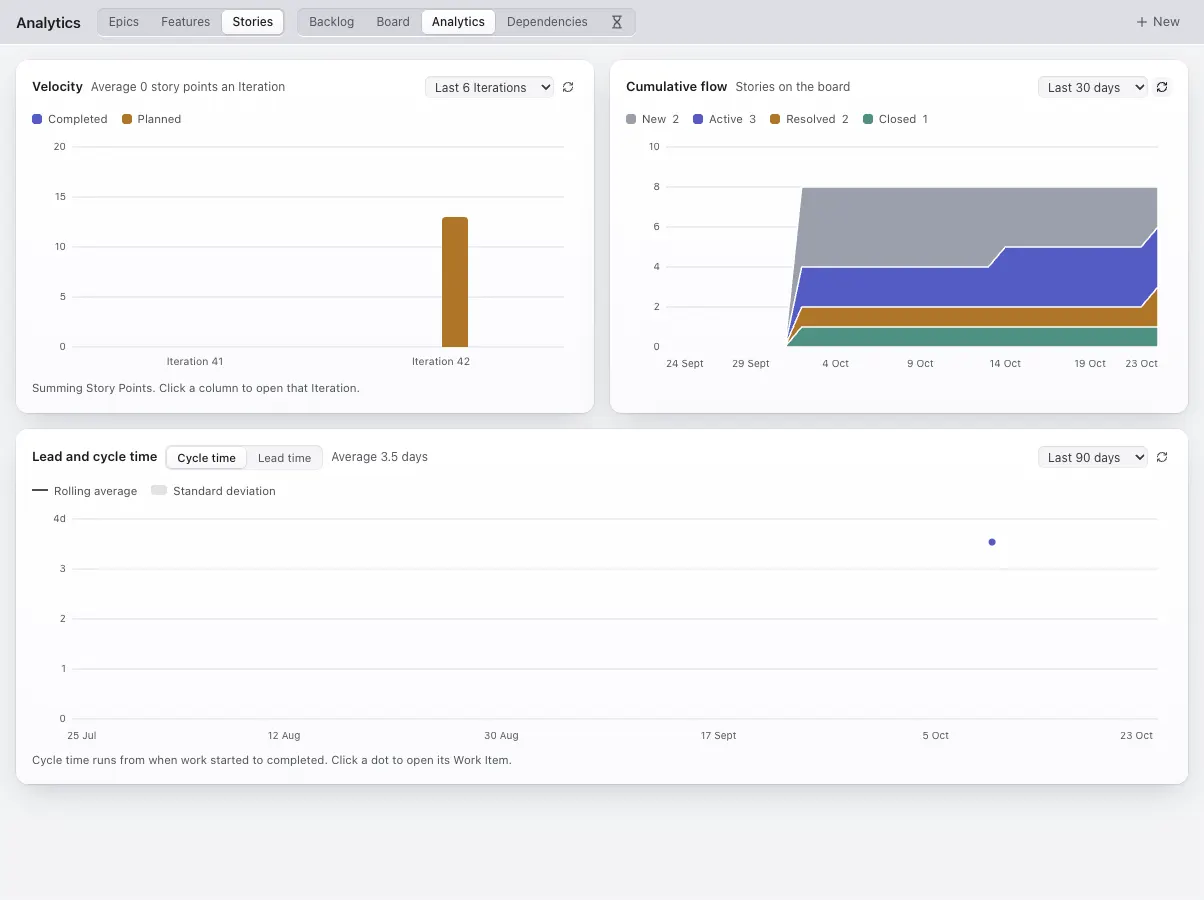
Analytics charts the backlog level from Azure DevOps Analytics:
- Velocity: the effort planned and completed in each of the last 6 or 12 Iterations, with the average. Click a column to open that Iteration.
- Cumulative flow: how many Work Items were in each board column each day, over 14 to 180 days.
- Lead and cycle time: a dot for each completed Work Item, with a rolling average and the standard deviation. Cycle time runs from when work started to when it was completed; lead time from when it was created. Click a dot to open its Work Item.
Team analytics comes from Analytics, so a Personal Access Token needs Analytics: Read. Where Analytics is turned off for the Project, the tab says so.
Dependencies
Dependencies shows the Team's Work Items that have Predecessor or Successor links, in a column for each Iteration, with a line from each predecessor to the Work Item waiting on it. Ours shows the dependencies between the Team's own Work Items; Others adds those with other Teams.
- A line is red when the successor is planned to finish before its predecessor: it's out of order. The footer counts how many are.
- An end with no Iteration is amber.

Add, reverse or remove a dependency
- Drag one Work Item onto another: the second now waits on the first.
- From the keyboard, press D on a card, choose which way it goes, then pick the other Work Item.
- Click a line, or its handle, for a menu to reverse it or remove it. A removal can be undone from its message.
A toggle in the toolbar also shows the Work Items in the current and future Iterations that have no dependencies yet, to drag from or onto.
Iterations
Click an Iteration in the sidebar to open it. Its header shows its dates, how many days are left, a small burndown with how much is done and how much was added since it started, and the Remaining Work left. Below the header, if the organization has the Sprint Goal extension, is the Team's goal for the Iteration. The Iteration has four tabs: Backlog, Taskboard, Capacity and Stand-up. It opens on the one you used last.
Iterations are read from this computer's copy, then checked with Azure DevOps, so Work Items outside the Sync Scope that belong to the Iteration still appear. A Work Item made from an Iteration goes into that Iteration and the Team's Area.
The Iteration Backlog
The Iteration's backlog items in Backlog Order, each with its tasks underneath. Above the list, Work details shows the Team's and each person's Remaining Work against the Capacity they have left; red means more work than time.
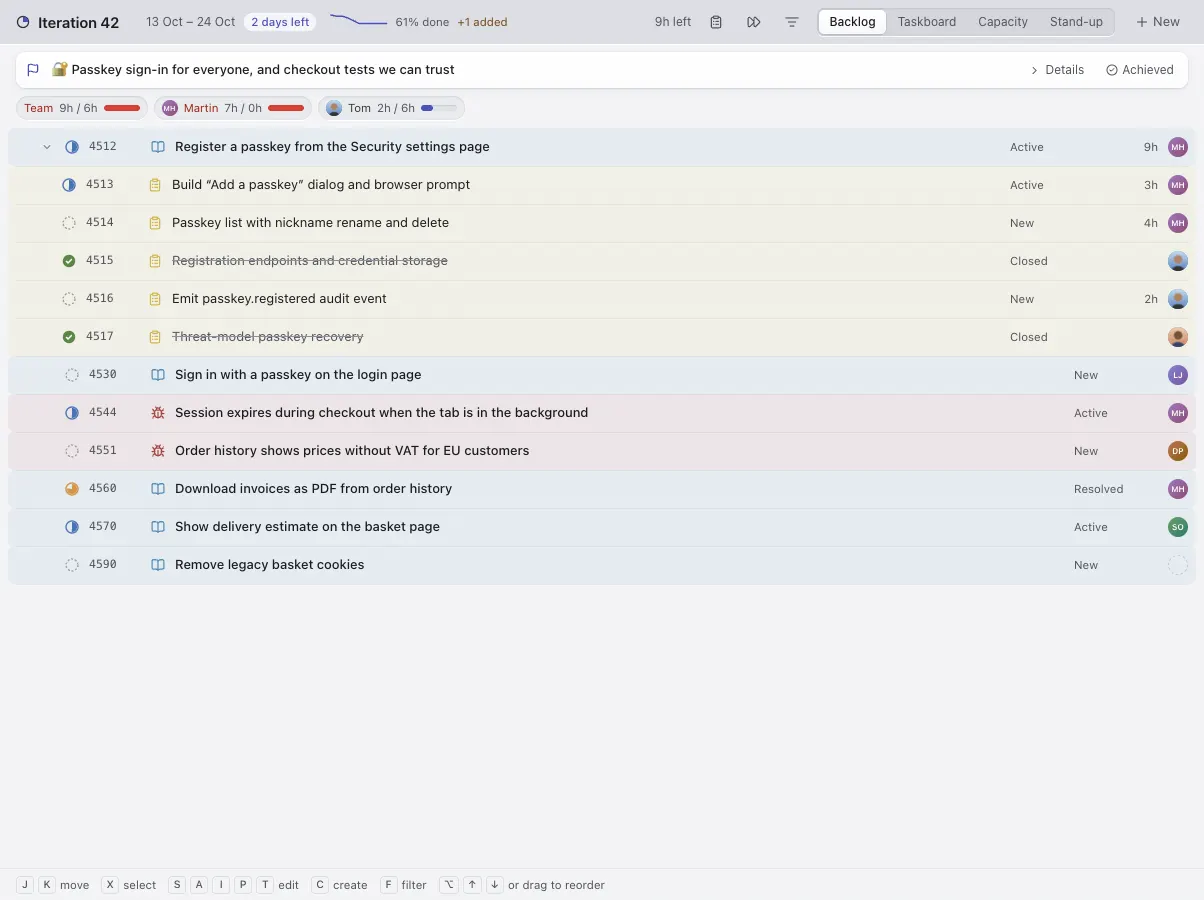
- Drag rows to reorder them, or use ⌥↑ and ⌥↓.
- Move an item to another Iteration with the button on its row, or by dragging it onto an Iteration in the sidebar. Its unfinished tasks go with it.
- Add a task with + on a backlog item's row: type its title and press Enter.
- Parents from other Iterations, and tasks without a parent, are listed separately at the bottom.
The Taskboard
A Swimlane for each backlog item, with its tasks as cards in the Team's Taskboard columns (or the task types' States). Drag a card to another column to change its State; only moves the Process allows are accepted. From the keyboard, ⌥← and ⌥→ move a focused card a column.
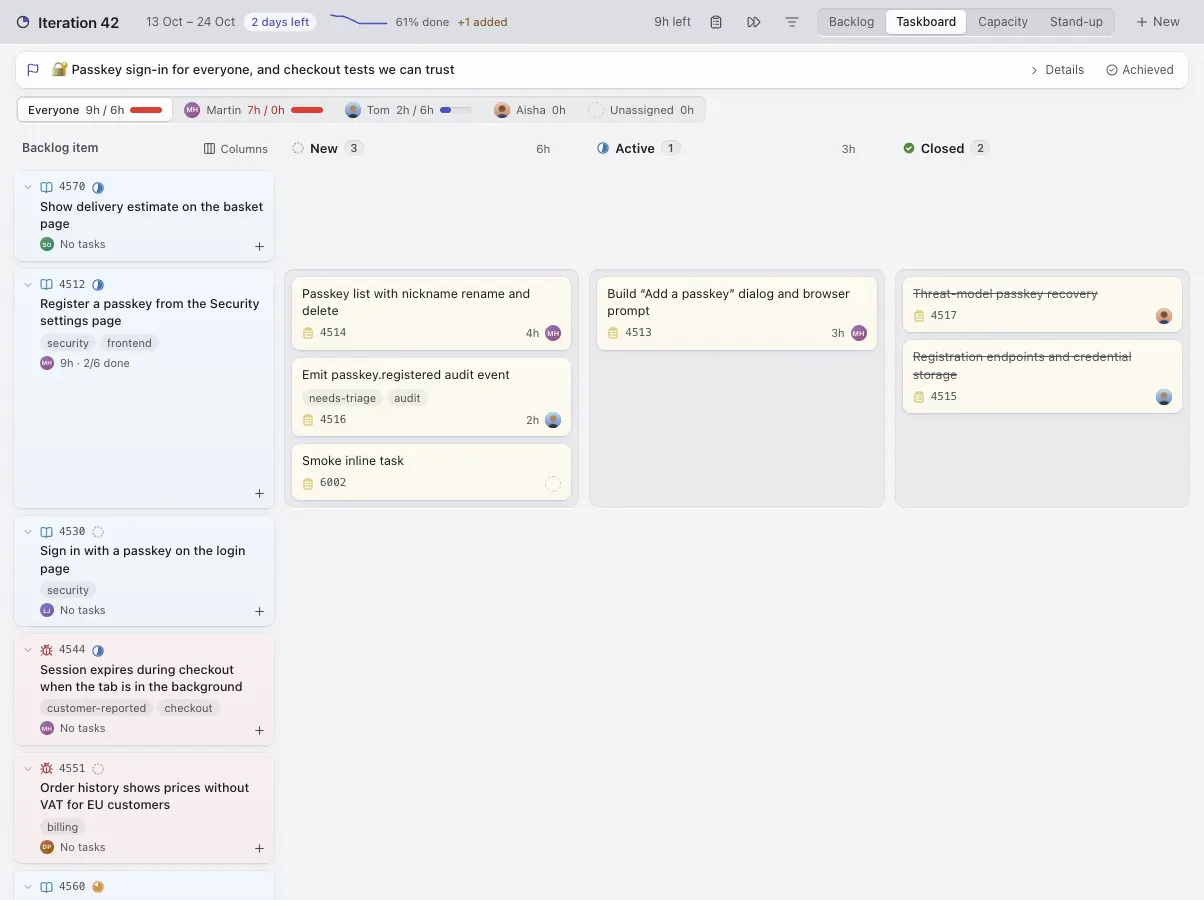
- Each column's head totals the Remaining Work in it. In a column of started or finished tasks, cards are in the order their State changed, the latest at the bottom; To Do keeps Backlog Order.
- The person chips along the top show each person's Remaining Work against their Capacity, and filter the board to their tasks. Everyone with tasks in the Iteration is listed, even when all theirs are done.
- Add a task to a backlog item with + in its Swimlane.
- Fold a Swimlane with the arrow beside it, or collapse a whole column on this computer from its head.
Swimlanes by person
Columns on the Taskboard groups Swimlanes by backlog item or by person. By person, everyone with tasks in the Iteration gets a Swimlane, and each shows the hours they've completed beside their Remaining Work; the header does the same for the whole Team. Drag a card into another person's Swimlane to reassign it.

Hours completed are a number Field added up over each person's done tasks: Completed Work where the Process's tasks have it (Agile, CMMI), otherwise a Field named for work complete. Columns › Hours completed picks another Field, or counts done tasks instead.
What cards show
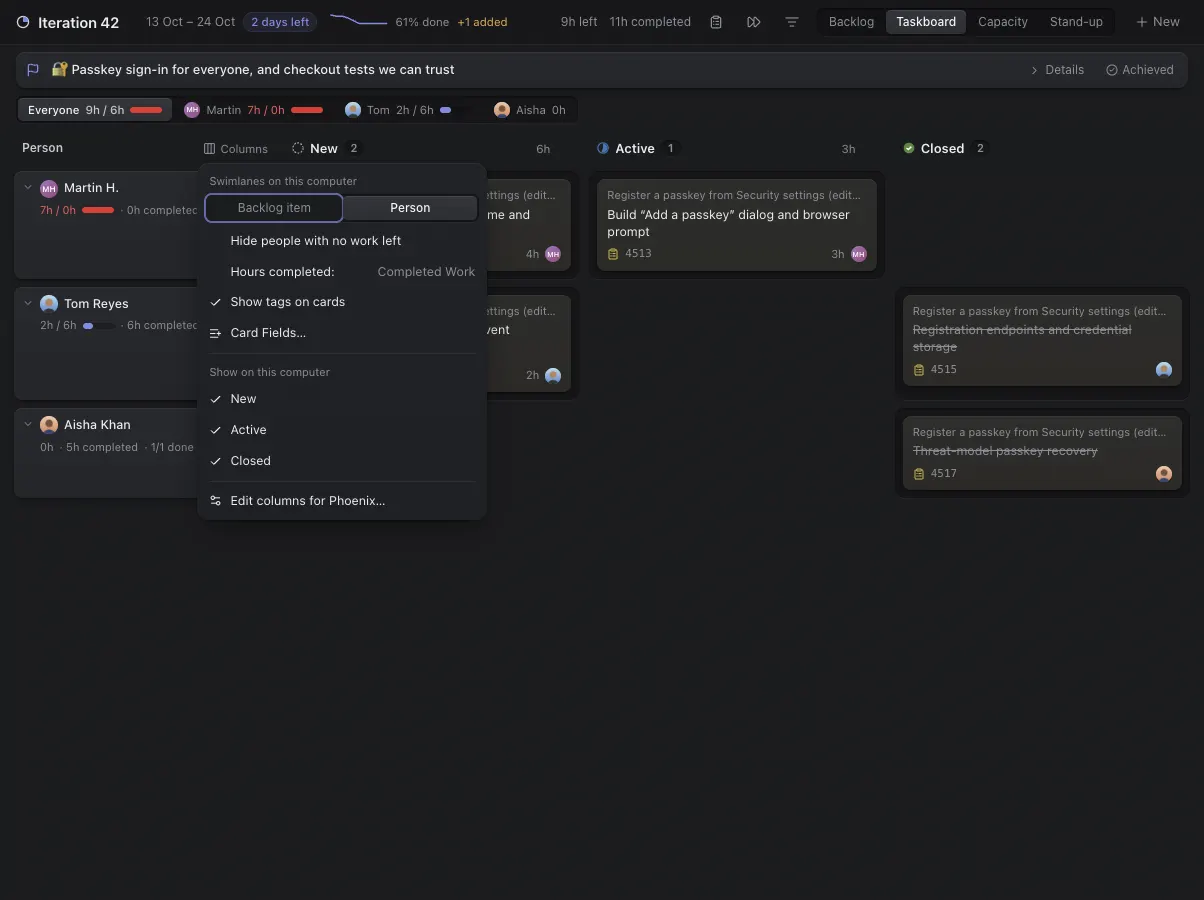
- Each task's tags show on its card as pills, and each backlog item's on its Swimlane. Columns › Show tags on cards hides them.
- Card Fields… adds any other Field of the task types under a card's title, in the order you choose.
- Hide people with no work left leaves out the chips and Swimlanes of people whose tasks are all done. Totals still count them, and the strip says how many are hidden, with Show to bring them back.
These choices are kept for each Team on this computer.
Capacity
Capacity is how many hours each Team member can give the Iteration. It's saved to Azure DevOps, as the website's Capacity tab is.
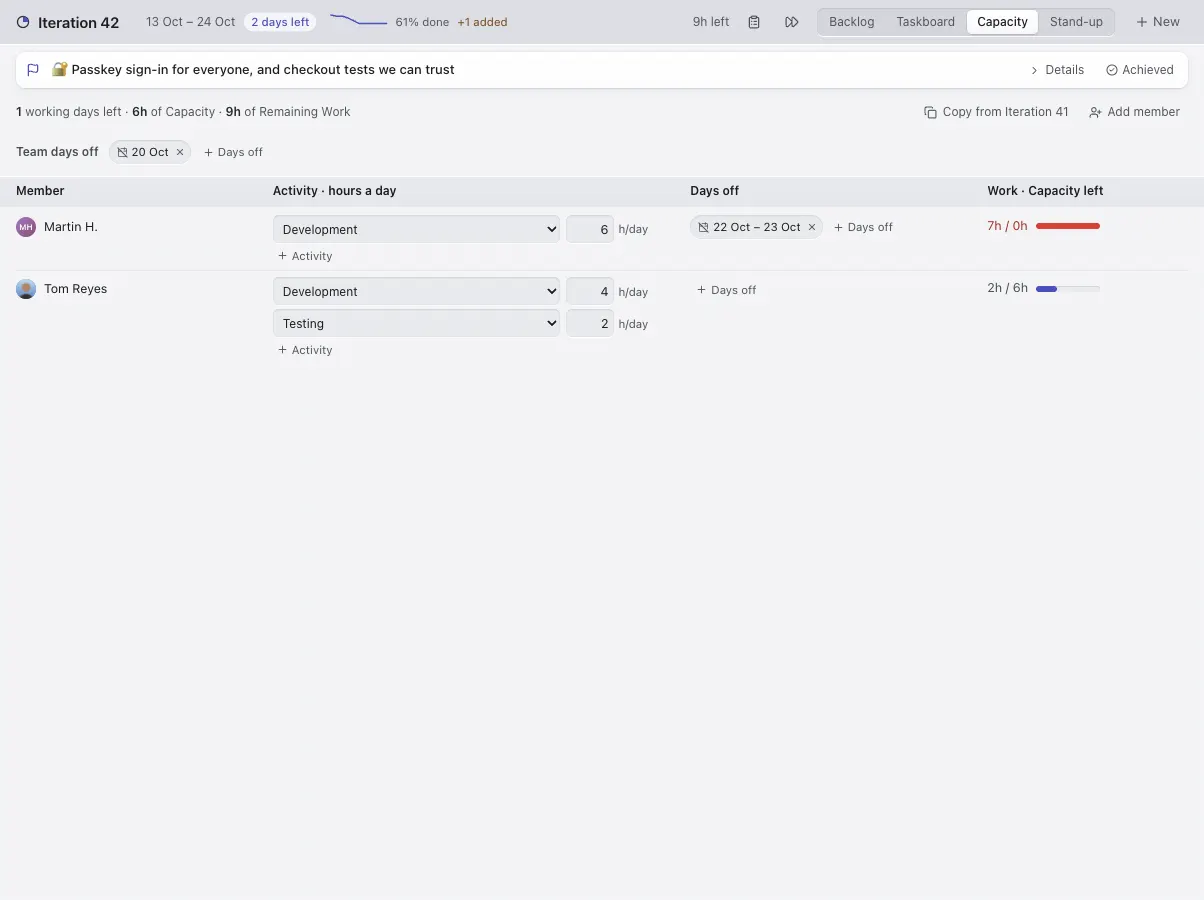
- For each member, choose an Activity (Development, Testing and so on) and the hours a day for it. + Activity adds another.
- + Days off on a member's row adds their days off; + Days off beside Team days off adds days off for everyone.
- Add member adds someone to the Iteration's Capacity.
- Copy from the previous Iteration copies its Capacity as a start.
- The last column shows each person's Remaining Work against the Capacity they have left, red when it's more.
The line at the top adds it up: working days left, the Team's Capacity and its Remaining Work. Offline, Capacity changes wait to be sent; when they go, the last change wins for each person, as on the website.
The burndown
Click the small burndown in an Iteration's header to open the full chart beside the Iteration. It shows Remaining Work each day against the ideal trend and the Team's Capacity left; Backlog items switches it to count backlog items instead of hours. Figures across the top give the Remaining Work, the share done and the change of scope since the Iteration started. Rest the pointer on a day to see its numbers.
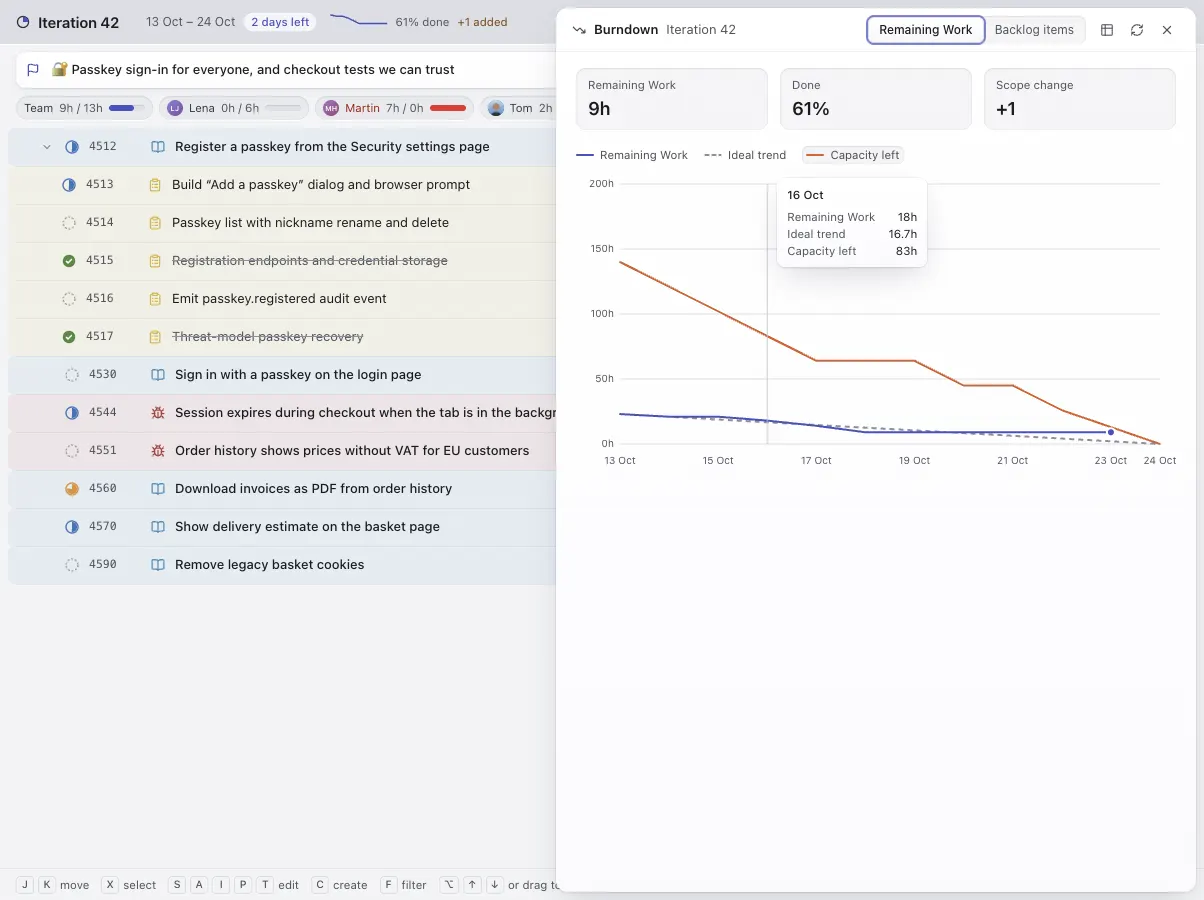
The burndown comes from Analytics. Without Analytics: Read, it's worked out from each Work Item's history instead, which is slower.
Stand-up
Stand-up, beside an Iteration's Backlog, Taskboard and Capacity, is for the daily stand-up: the Iteration's Work Items, backlog items and tasks alike, by whose they are, in the order of their names, then the ones nobody has. Open it from the Iteration, or with Current Stand-up in the command palette.

A sentence heads it, such as "Since yesterday: 1 changed State. 5 others under way." Then each person's Work Items are in four groups:
- Finished since the Team's last working day: closed, the newest first.
- Changed State since then and still under way: started, reopened, resolved or moved on, each with the State it's in now.
- Under way from before: the longest in its State first, each saying how long. One that's resolved is under way until it's closed.
- Not started: any put back since first, then in Backlog Order. The first three show, with a button for the rest.
A Work Item is under whoever has it now; a closed one is under whoever closed it, then says who has it now. What's under way with no change at all for a week says so in amber. A task says which backlog item it's under. Click a row to open the Work Item.
"Since" means since the Team's last working day, so on a Monday the weekend counts with Friday. The working days, days off and members come from the Iteration's Capacity. Stand-up reads this computer's copy, so it works offline. It goes by States: a reassignment, a Comment or a Work Item added to the Iteration isn't a change it lists. An Iteration that's over, or hasn't started, says so.
Sprint Goal
Where the organization has the Sprint Goal extension, each Iteration's Backlog, Taskboard, Capacity and Stand-up start with the Team's goal for it. The Home sprint tile shows it too.

- Click the goal to change it. Enter saves and Esc cancels.
- Achieved marks it met.
- Details opens the rest of it, written with the same editor as a Work Item's Description.

It's the same goal the website's Goal tab and widget show, saved the way the extension saves it. If someone else saved the goal since you opened it, you're asked which to keep. Goals show offline as last read, and change only with a connection. Without the extension, there's no goal line.
A Personal Access Token needs Extension Data: Read & write, and Extensions: Read to check the extension is installed.
Sprint report
Once an Iteration has started, the Sprint report button in its header (the clipboard) opens a report of what was planned against what was done. It compares the Iteration's backlog items as they were at the end of its first day, once planning was done, with how they stood at the end of its last day, or stand now while it's still going.

- A sentence says how it went, such as "Completed 6 of the 8 planned (75%), and 1 of the 2 added since."
- Six figures, each in backlog items and effort: Planned, Completed, Added after the start, Not finished (Still open until the Iteration is over), Moved out and Removed.
- Each backlog item listed by what became of it, with its person, its State if it isn't finished, where a moved-out one went, and Added on those that weren't planned. Click one to open it.
- A table by person: what each planned, completed, didn't finish and had moved out.
Copy as Markdown puts the whole report on the clipboard, to paste into notes, a Wiki page or a chat.
Moved out means no longer among the Team's backlog items in the Iteration: in another Iteration, another Team's Area, or changed to a type that isn't a backlog item. The effort planned is the estimate at the start; the rest is the estimate at the end. A day ends at this computer's midnight. The report covers the Team's backlog items, not their tasks; it needs a connection but not Analytics, and nothing is kept.
Roll over
At the end of a sprint, Roll over (the button beside Sprint report in an Iteration's header) moves what's unfinished to a later Iteration in one go.
- Click Roll over. The dialog lists the Iteration's unfinished backlog items in Backlog Order, all ticked, then any unfinished tasks on their own (whose backlog item is closed or in another Iteration).
- Choose where they go in Move to: the Team's Iterations that aren't over, the next one first, each with its dates; or the Team's backlog, which takes them out of every Iteration.
- Untick anything that should stay. The line under the list says how many will move and how many stay.
- Click the button that says how many will move, such as Move 10 Work Items. Each backlog item takes its unfinished tasks in the Iteration with it.

Only what's listed moves: a task of a listed backlog item that's in another Iteration stays there. What's closed stays where it is, as what the Iteration did. Undo, on the message that says they've moved, puts them all back. Offline, the moves wait to be sent. A Work Item that turns up while the dialog is open is listed unticked. Roll over is there for the current Iteration too, for a Team that moves things on before its last day.
Delivery Plans
Plans in the sidebar (and the command palette) lists the active Team's Project's Delivery Plans. A plan shows a row for each Team and backlog level, the Teams' Iterations along the dates, their Work Items as cards, the plan's markers, and today.

- Zoom in and out with − and +, and jump back with Today.
- Drag a card to another Iteration in its row to move it there. From the keyboard, ⌥← and ⌥→ move a focused card an Iteration. Offline, the move waits to be sent.
- Click a card to open its Work Item.
- Opened offline, a plan shows as it was last time.
Make or change a plan
+ beside Plans makes a new plan with its first Teams and backlog levels. Plan settings on a plan changes it:
- General: its name and description.
- Teams: add, remove and reorder its Teams and their backlog levels.
- Field criteria: conditions on Fields that narrow which Work Items show.
- Markers: dated markers, each with a label and a colour.
- Fields on cards: which Fields its cards show.

Plan settings also deletes the plan, after asking.
Plan settings save straight to Azure DevOps, for everyone. If someone else saved the plan first, the settings reload as they are now.
Retrospectives
Where the organization has the Retrospectives extension, Retrospectives under the active Team in the sidebar lists the Team's retrospective boards, newest first, with the phase each is in. The newest board is listed under it in the sidebar too. You take part alongside people on the website: the board is read again every 10 seconds while it's on screen, so others' cards and votes appear on their own.
Start a board
- Open Retrospectives and click New board.
- Give it a name, and choose a template: Start, Stop, Continue; Good, Improve, Ideas, Thanks; Mad, Sad, Glad; 4Ls; DAKI; KALM; Went Well, Learned, Accelerators, Impediments; or Speedboat.
- Set Votes each person has (1 to 12), and tick Anonymous to leave authors off the cards. That can't be changed once the board is made.
- Click Make board. It starts collecting cards. Making a board needs a connection.
The four phases
A board goes through Collect, Group, Vote and Act, shown as steps in its header. Clicking a step only looks at the board that way here. Whoever made the board moves it on for everyone with Move everyone to …, and the website follows.
Collect
Everyone writes cards. Type in Add a card… at the top of a column and press Enter. You can edit your own cards, and delete them while they have no votes. If someone else edited the same card meanwhile, you're asked which words to keep.

Group
Drag a card onto another to group them; the group shows how many cards it has. From the keyboard, a card's Group with… does the same. Drag a card onto a column's space to take it out of its group.

Vote
Each person spends the board's votes on the cards that matter most. The header says how many you have left; take a vote back with −. On an anonymous board, cards show no authors.
Act
Cards are listed with the most votes first. Make a Work Item from a card with Create Work Item, or link one that exists with Link…; it opens in a panel, and the card shows it with its State.

Offline, a board shows as it was, marked as out of date, and nothing can be changed. Archived boards stay on the website.
Project settings: Areas and Iterations
A Project's … menu in the sidebar (or Areas and Iterations in the command palette) opens its Project settings: the Areas and the Iterations as two trees, with each Iteration's dates and how many Work Items this computer has at each node. Type in the filter to find one.

Select a node, then:
| Key | Does |
|---|---|
| Enter | Rename it in place |
| N | Add a child under it |
| ⇧N | Add one beside it |
| D | Set an Iteration's dates |
| M | Move it (or drag it onto another node) |
| + | Add the next Iteration after a dated one |
| ⌫ | Delete it, choosing where its Work Items go |
Add the next Iteration
+ on a dated Iteration offers the next one: starting the next working day, as long as the one before, its number one higher. Change anything before adding it. Leave Add it to the Team's Iterations ticked and it shows in the sidebar and the Team's backlog straight away.

Renaming and moving keep every Work Item: Azure DevOps moves their paths, and the pickers, the sidebar and the local copy follow at once. Deleting a node asks where its Work Items go: its parent, unless you pick another.
Azure DevOps is asked first what you may change. Without permission, or offline (where the trees show as last read), everything is read only and says why. A Personal Access Token needs Work Items: Read & write to make changes.
Team settings
Team settings… in the Team menu sets which Areas and Iterations a Team uses. Changes are saved for the whole Team, and its backlog, boards and Iterations follow them, here and on the website.
- Areas: the Team's Areas, with or without the Areas under each, and its default Area.
- Iterations: the Backlog Iteration the Team's Iterations come from under; the Default Iteration new Work Items go in (the current Iteration, or a specific one); and the Team's Iterations, ticked from those under the Backlog Iteration.

As with Project settings, Azure DevOps is asked first what you may change; without permission the settings are read only, with the reason.