 ADO Local
Test Plans
See how a Test Plan is going, give its Test Points their outcomes many at a time, and run Test Cases step by step, filing a Bug from the step that failed. Test Plans are the same ones the website shows, and what you record here is recorded in Azure DevOps.
Test Plans in a Project
Each Project in the sidebar has Test Plans. It lists the Project's plans grouped by Iteration, the current Iteration first, each with its Iteration, Area, owner and State.

- Filter Test Plans finds plans by words in their name, Iteration or Area.
- Mine keeps the plans you own; Active, on unless you turn it off, leaves out inactive ones.
- A plan you've opened here shows the progress it had then. The others show none, rather than reading every plan's Test Points.
The command palette finds Test Plans in each Project and each plan by its name. Plans are made and set up on the website: Open in browser takes you there.
A plan, its suites and Test Points
Open a plan to see its suite tree on the left, each suite with a bar for its progress, and on the right the suite you've chosen with its own Test Points. The first suite with Test Points of its own is shown to start with.

- A suite's header says what kind it is. A requirement-based suite names the PBI it tests, which opens in a panel; its State shows beside it.
- Under it, a bar and counts of what passed, failed, was blocked and hasn't been run. A suite that has suites under it says how many Test Points they hold.
- Each Test Point has its Test Case, configuration, tester, Test Outcome and when it was last run and by whom. Click its Test Case to open it in a panel.
- Any outcome, Any tester and Any configuration narrow the points shown.
Give Test Points an outcome
You can mark one Test Point, or many at once, without opening the Test Runner: useful when you've tested something by hand and want to record it.
- Choose the Test Points. Click one; ⌘-click or ⇧-click to add others; or move with the arrows and press X (or Space) to tick each one. ⇧↑ and ⇧↓ extend the selection, and ⌘A chooses them all.
- Press the outcome's key, or click its button above the list: P Pass, F Fail, B Block, N N/A (not applicable), or R Reset to not run.
- To add a comment, hold ⇧ with the key, or click Comment…. The comment goes on each Test Point's result.

Azure DevOps records the outcomes in a run of their own, as the website does. The points change in place, and a message offers Undo, which gives them their earlier outcomes again in a new run. Esc clears the selection.
Run tests in the Test Runner
To step through a Test Case as you test it, choose its Test Points and click Run (⌘↵). The Test Runner opens over the window and takes the points one at a time ("2 of 4"), with Previous and Next in its header.

For each Test Point it shows the Test Case and its configuration, who it's assigned to, how it did before, and the PBI it tests. Then its steps: each step's action and the result expected. Shared Steps are read in and can't be changed here; parameters are shown as they're written.
- Work down the steps. P passes the step you're on and moves to the next; F fails it and opens a comment for what went wrong. ↑ and ↓ move between steps; you can also click Pass and Fail.
- Under Outcome, choose Passed, Failed, Blocked or Not applicable. It's suggested from the steps, so a failed step suggests Failed.
- Add a comment on the result if you like.
- Click Save & next (⌘↵) to save this point and go on to the next one not saved yet, or Save & close.
Saving sets the point's outcome and puts the step results, the comment and any Bugs on its result. Results you haven't saved are kept while you move between the points. Closing the runner with any left unsaved asks first; Discard results sends nothing for them.
File a Bug from a failed step
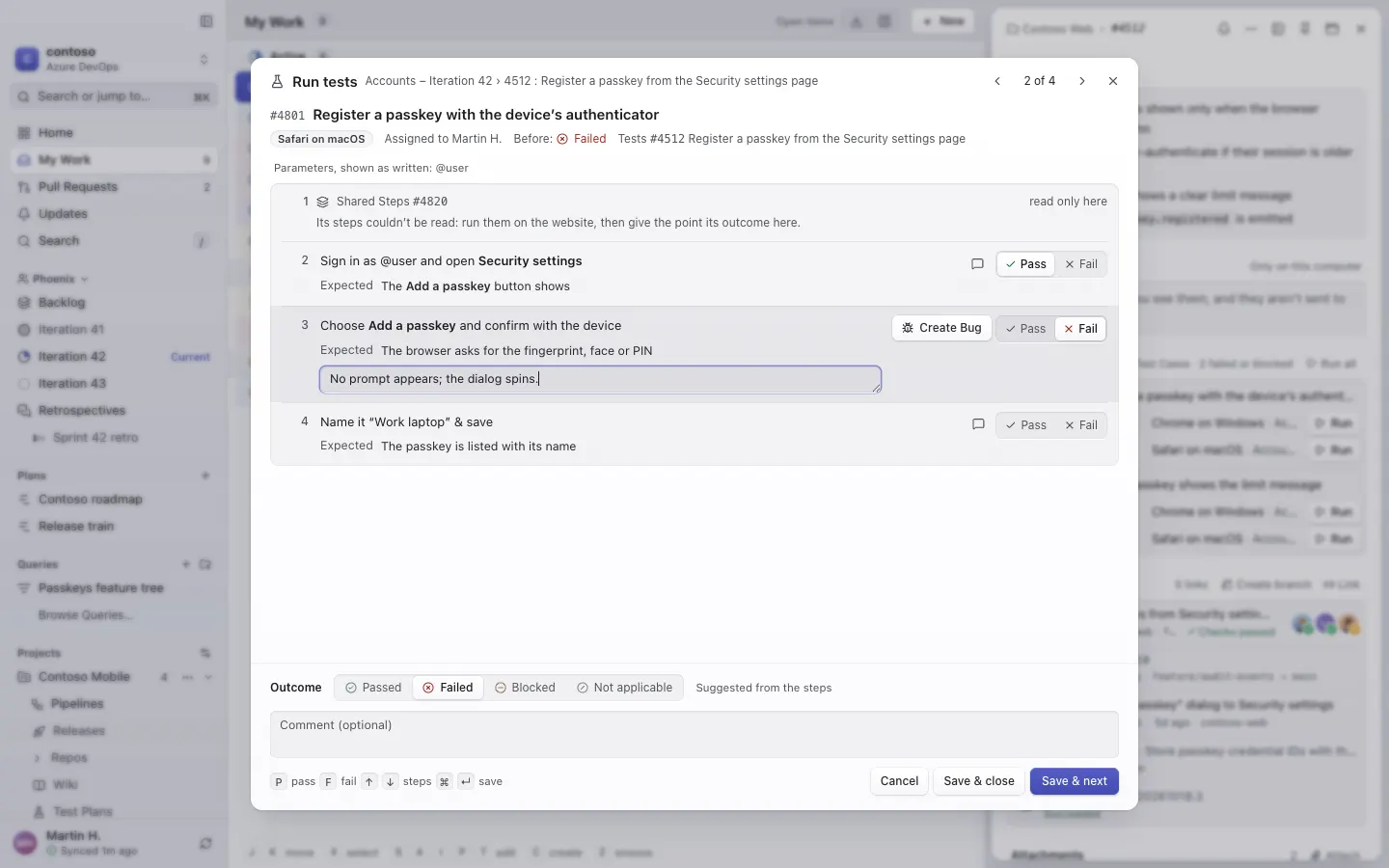
- Fail the step, and write in its comment what happened.
- Click Create Bug on the step. Its title is filled in from the Test Case and the step; change it if you like.
- Click Create Bug again to make it.
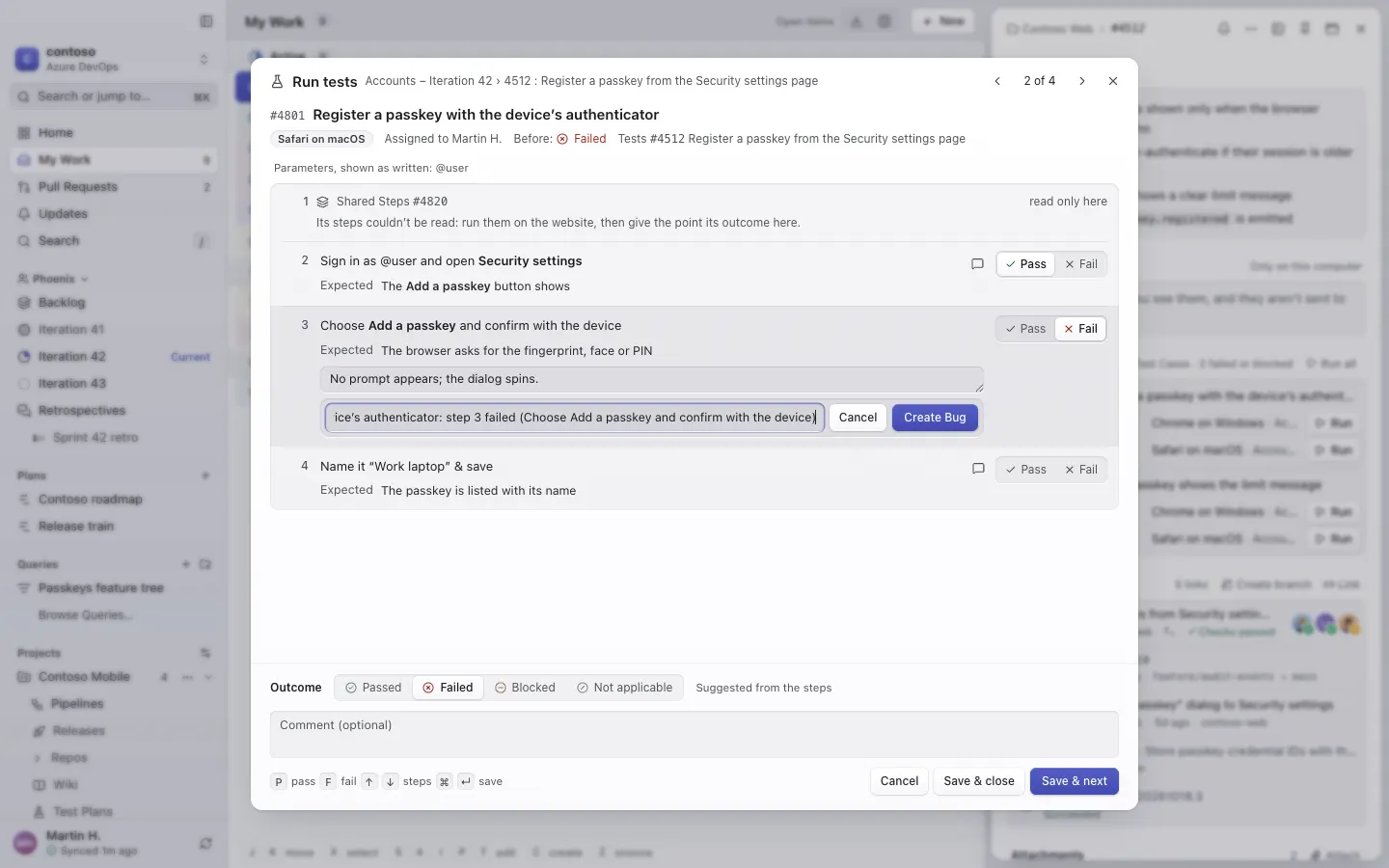
The Bug is made with the steps to reproduce it, linked to the Test Case it failed in (Tested By) and to the PBI (Related), and put on the Test Point's result when you save. It opens in the Work Item panel when the runner closes.
A Test Case's steps
A Test Case's Work Item panel shows its Steps, each with its action and expected result, in place of the Steps Field's raw text.

- Click Edit steps.
- Change any step's action and expected result; they're rich text, like other text Fields. Insert a step below one, delete one, or reorder them by dragging a step's handle, or with ⌥↑ and ⌥↓ on it.
- Click Save steps.
The steps are saved together, as one change to the Test Case, and each keeps its identity, so earlier runs' step results still find theirs. If someone else changed the steps meanwhile, you're asked which to keep, as for any Field. Shared Steps and parameters are shown as written, and can't be changed here.
A PBI's tests
A PBI's (or User Story's, or Requirement's) Work Item panel has Tests: the Test Cases that test it, each with its latest outcome in each configuration across every Test Plan, and which plan that was in.

- The heading counts the Test Cases and how many failed or are blocked.
- Run on a row opens the Test Runner on that Test Point. Run all runs every Test Case in its latest Test Point.
- Click a Test Case to open it in a panel.
- A Test Case that isn't in any Test Plan says so.
Offline
A Test Plan you've opened shows offline as it was kept, marked as stale. Its outcomes and Run are off until you're back online, and say why. A PBI's Tests show as last read; running them needs a connection. A Test Case's steps are read only offline.
Tests and release readiness
A release pipeline's readiness takes the tests into account. A release counts as ready only when its PBIs' Test Cases have passed (or don't apply); a Test Case that failed, is blocked or hasn't been run holds the release back, and the release pipelines list says which.

A release's panel has a Tests section with each PBI's Test Cases and their outcomes. A Test Case opens in a panel, and Run opens the Test Runner on it. Comparing two releases shows each PBI's and Bug's tests, and the release notes include a line on them. Pipelines and releases tells you more about release readiness.
Test Plans need Test Management: Read & write.